
After setting up your WishList LMS Courses, you can enroll students. You can also see how students are doing and manage your courses.
This document explains how to use WishList LMS Courses to run an online learning platform and track student progress.
Managing WishList LMS Courses
You can change your courses anytime by updating details and managing items.
You can manage your Lessons, Quizzes, and Assignments in the curriculum editor or go to their specific pages.
Editing Sections and Course Items via Curriculum
You can change any lesson, quiz, or assignment in the curriculum by following these steps:
- Navigate to the Curriculum tab and expand the Section where the course item is located.
- Hover over the lesson, quiz, or assignment you wish to edit to show additional options.
- Click the Edit option (the pencil icon) to edit the course item.
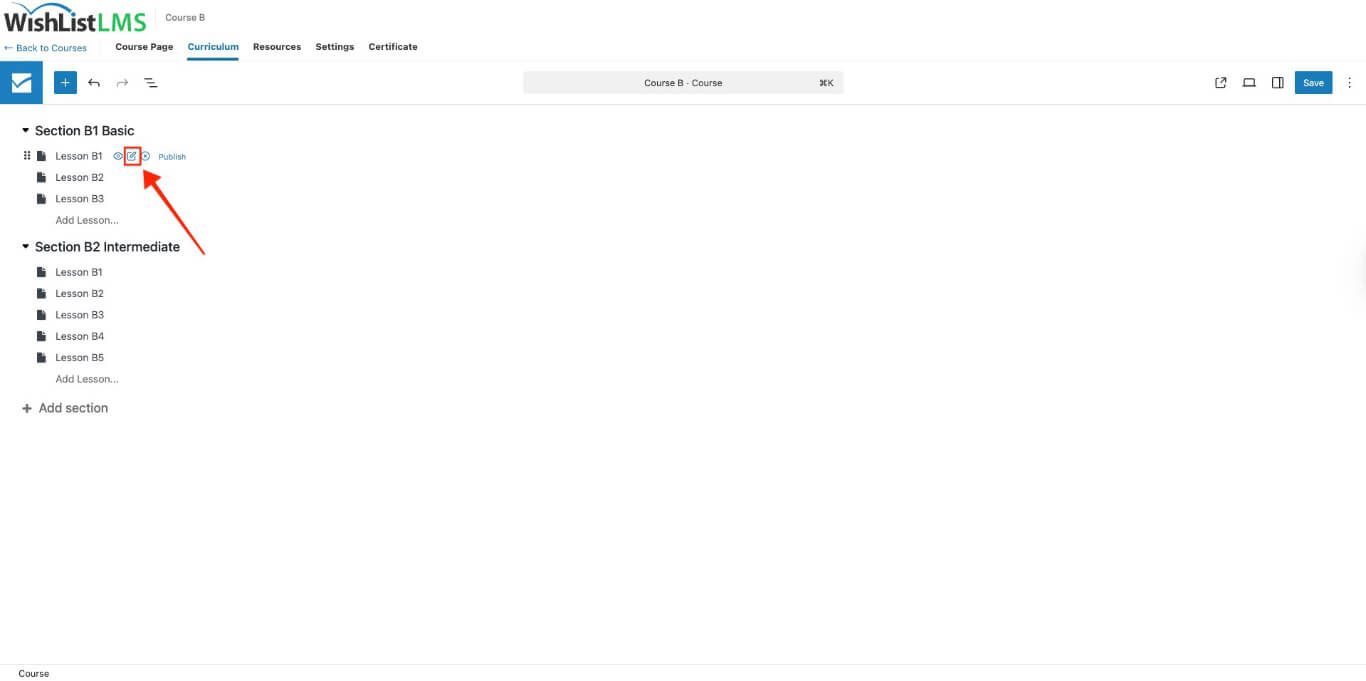
- Click the Update button to save changes to the Curriculum.
To edit the section, click the section name and rename it.
Move Sections and Courses Items
You can also change the order of sections and items or move items to other sections:
- Hover over the section or a course item you wish to move. The six-dot icon will appear on the left side of that section or item.
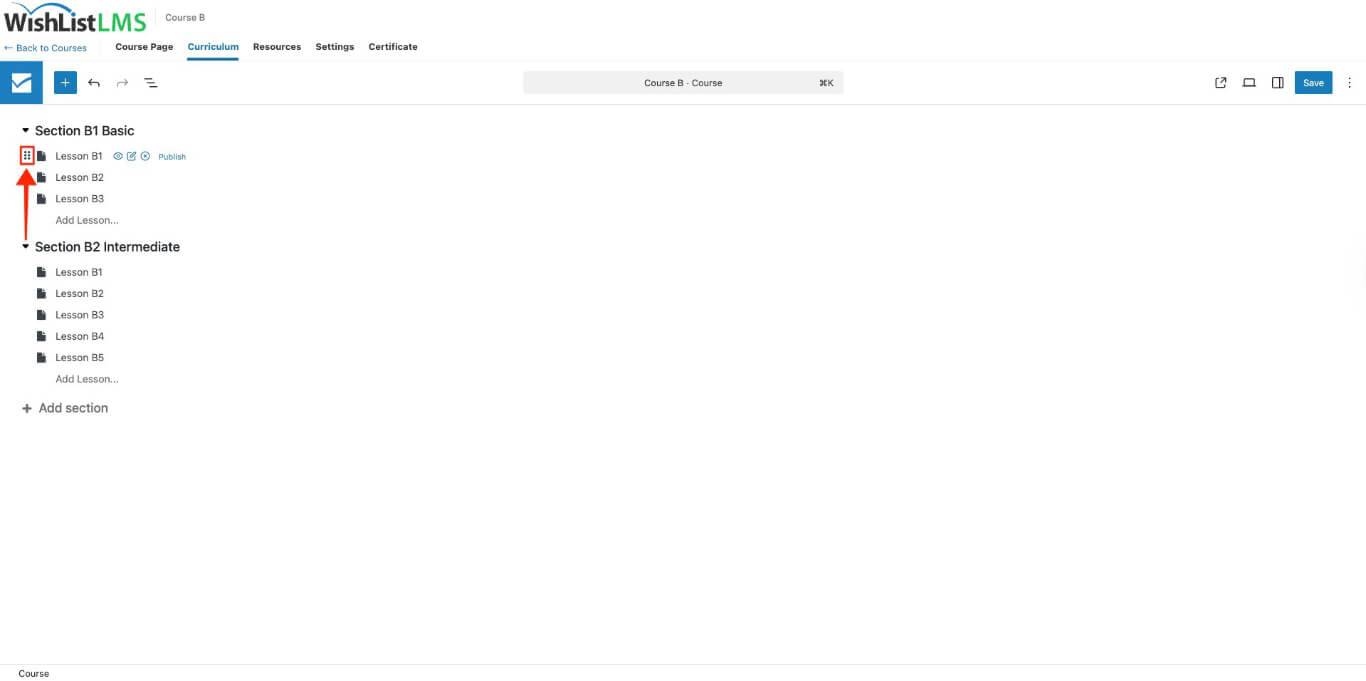
- Click and hold the six-dot icon.
- Drag the item to the new position.
- Release the six-dot icon.
Removing Sections and Courses Item From the Curriculum
You can delete lessons, quizzes, or assignments from the curriculum.
To remove a course item, hover over it and click the X icon.
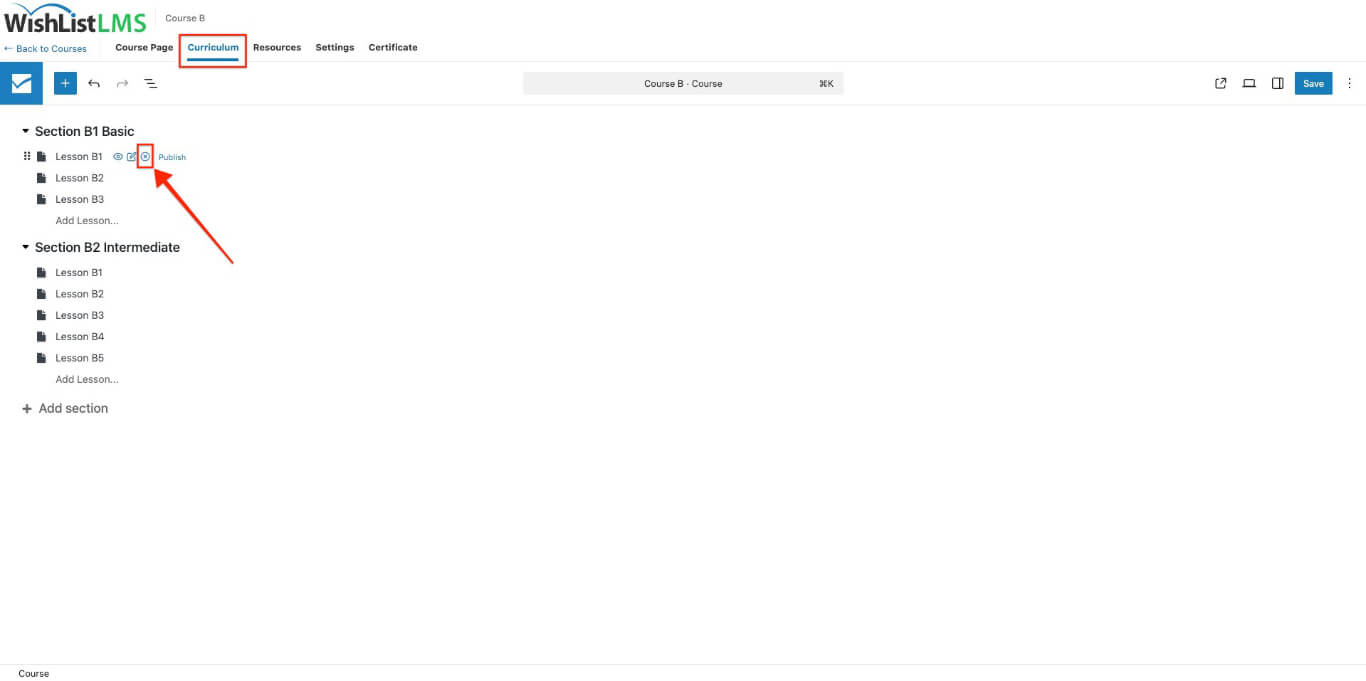
To delete a content item permanently, hover over it in the sidebar and click the trash bin icon that appears.
To delete a section, hover over its name and click the trash icon.
Managing Course Items Outside of the Curriculum
You can create, edit, preview, and delete course items like WordPress posts. You can also manage them through their own pages outside the Curriculum editor.
To manage your lessons, go to the Lessons page (Dashboard > WL Courses > Lessons). Hover over a lesson to see options to Edit, Trash, or View. You can also Duplicate lessons.
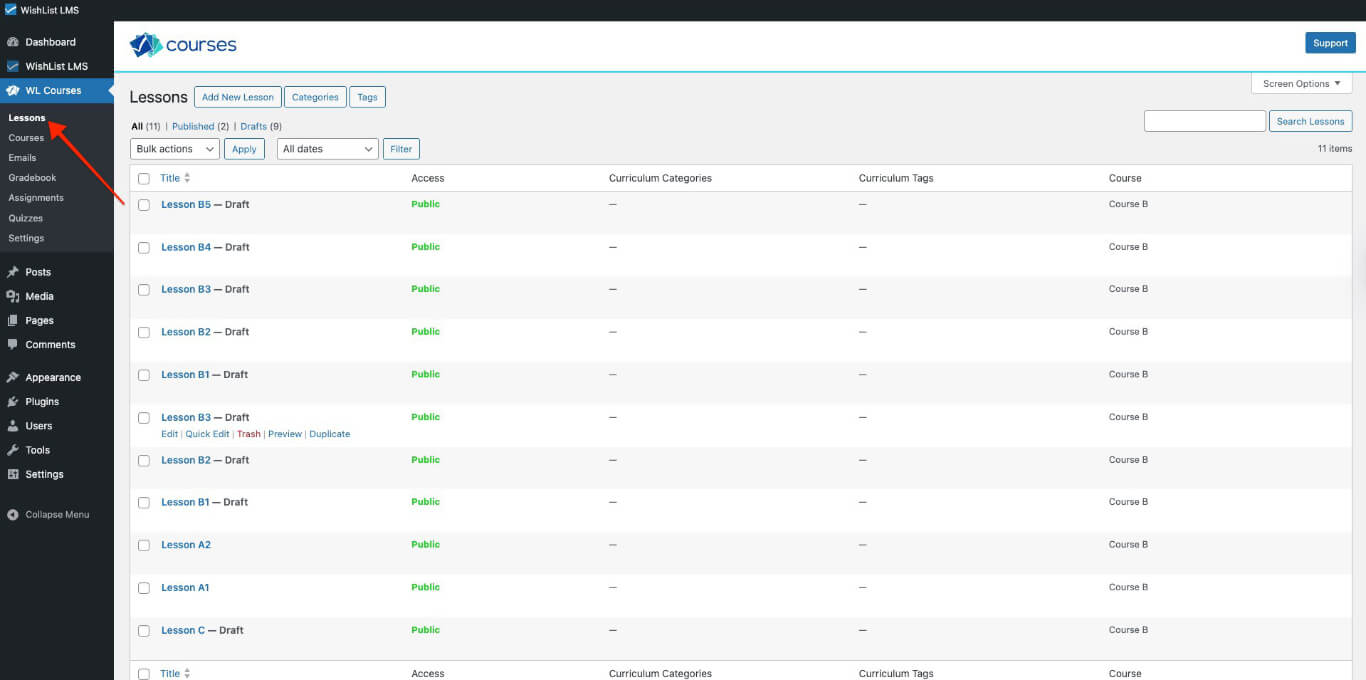
To manage your quizzes, go to the Quizzes page (Dashboard > WL Courses > Quizzes). From there, you can create, edit, duplicate, or delete quizzes outside the curriculum editor.
To manage your assignments, go to the Assignments page (Dashboard > WL Courses > Assignments). Use this page to create, edit, duplicate, or delete assignments.
Dripping Courses
Protecting your course content and setting up a drip schedule help you control how your students learn. You can release the course in parts or items using the built-in drip feature.
The built-in dripping feature allows you to release course content at set times. You can drip all items in a section at once or release them one by one in the order they appear.
You can release courses gradually with WishList LMS Course Dripping. This lets you set uneven intervals and more precise control. You need to create a rule for each section and item.
By gradually releasing content, students are less likely to skip lessons. It also helps groups of students learn at the same pace and in the same order.
Dripping helps plan exams and grading, and can also set holidays.
Student Progress
When using a learning platform, you can see how your students are doing in their profiles.
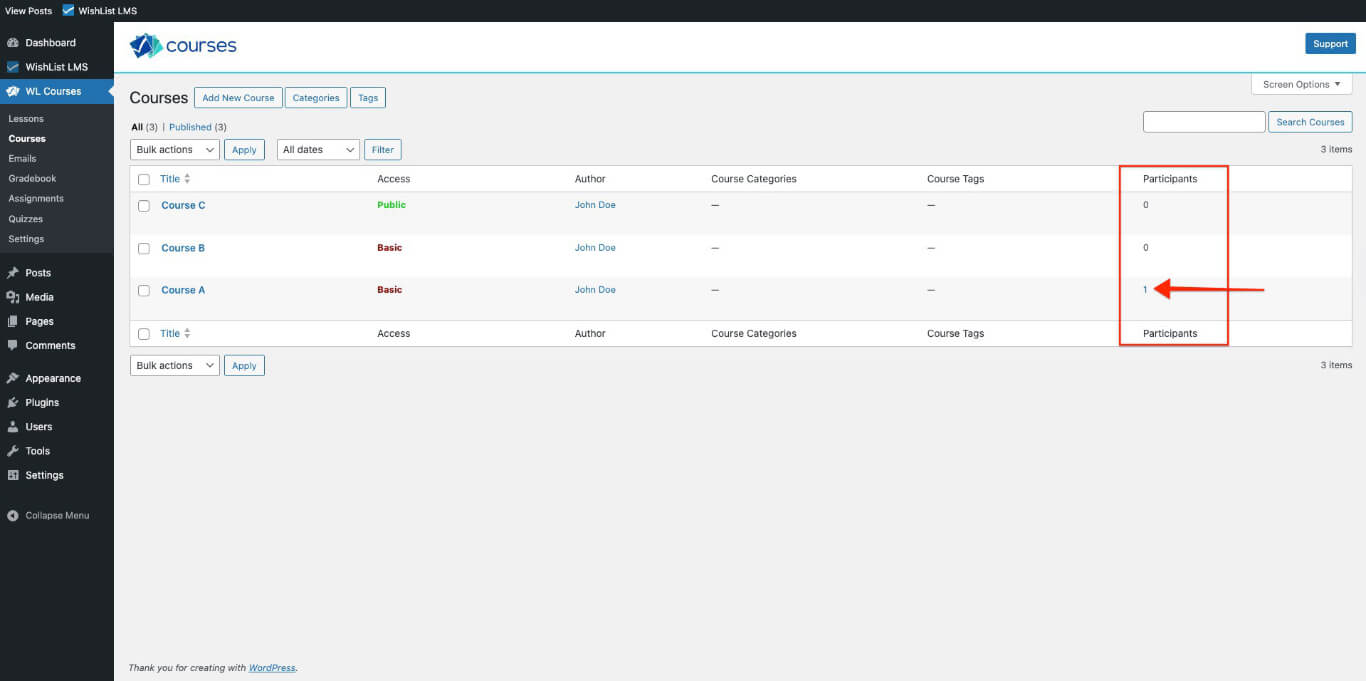
You can check the list of all students enrolled in a specific course:
- Navigate to Dashboard > WL Courses and find the course you want to check.
- Under the Participants column, click the number to see the students enrolled.
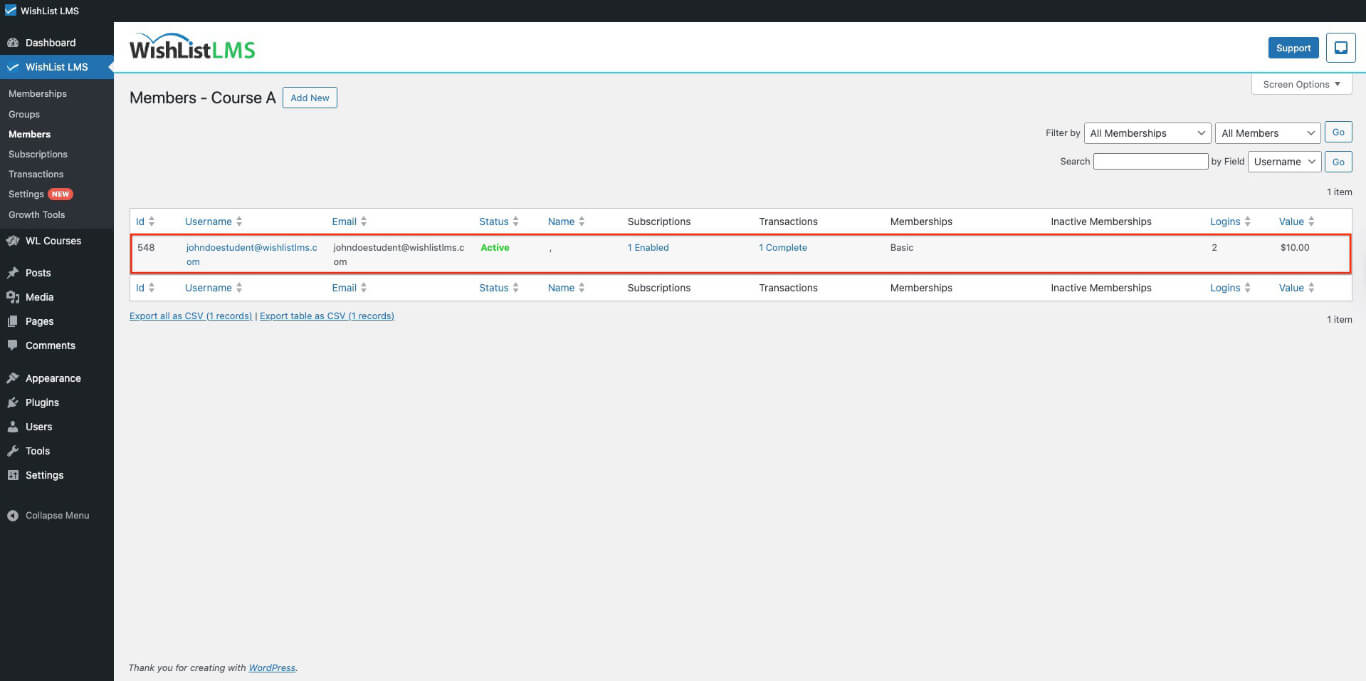
- In the list, click on the username of the student whose user profile you wish to access.
You can also find the student by going to Dashboard > Users. When you see the student, hover over their name and click Edit to view their profile.
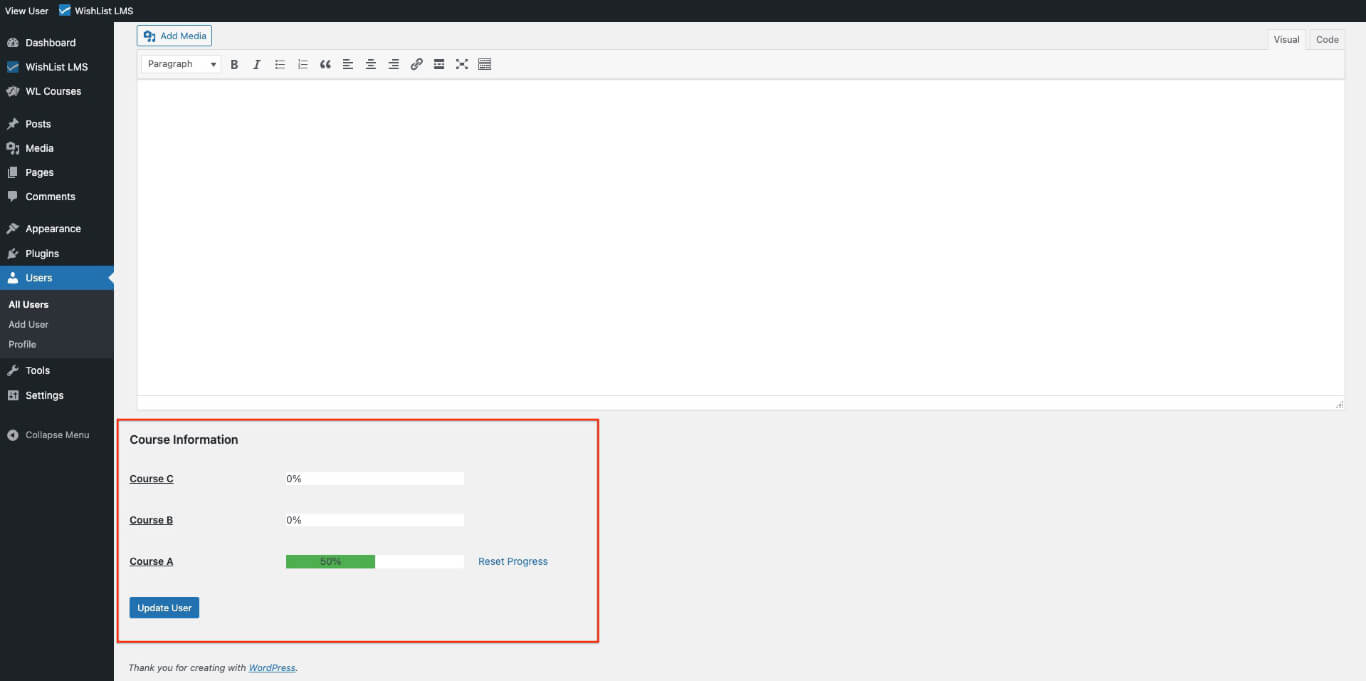
Go to the student’s profile, scroll down to see the Course Information. You will find the progress for all courses there.
Reset Students Progress
You can reset a student’s course progress from their profile. To do this, click the Reset Progress link next to the course name.
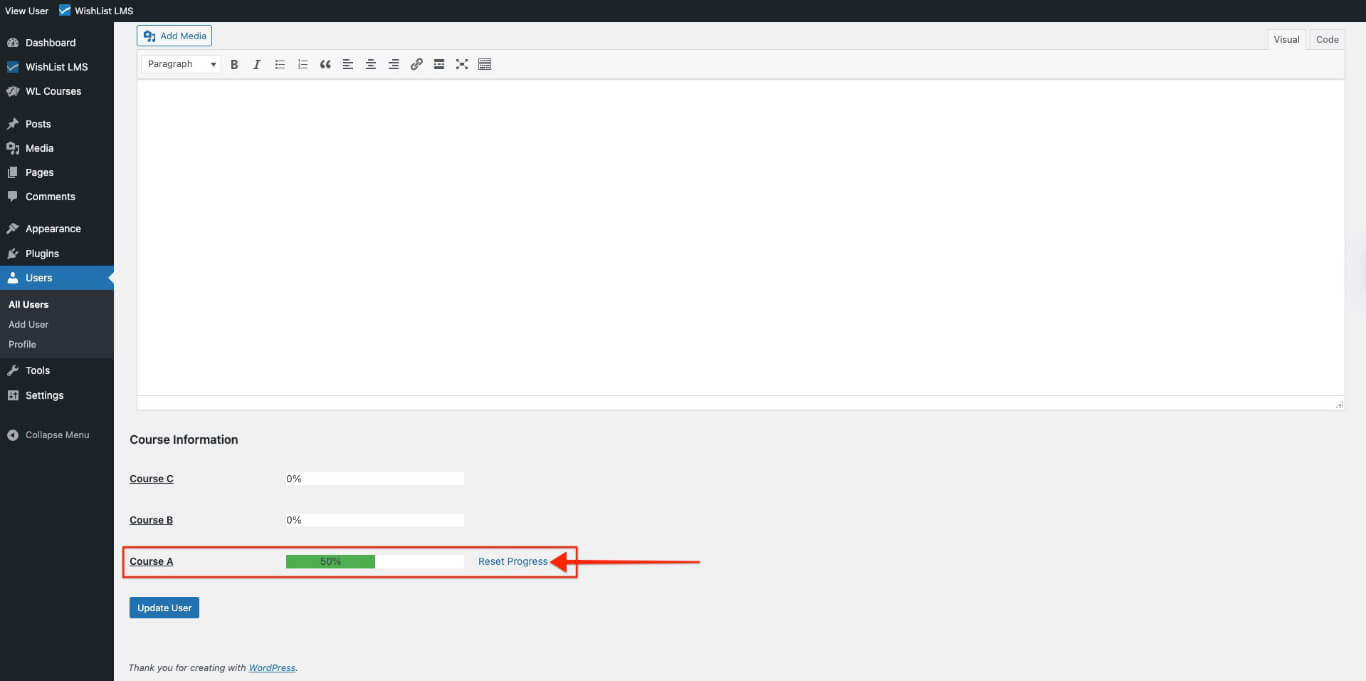
Resetting a student’s course will delete their progress. They will need to redo the course next time.
Tracking Student Progress
WishList LMS helps you track quiz attempts, review student answers, grade assignments, and consolidate results through the Gradebook.
Managing Quiz Attempts
You can review, reset, or delete quiz attempts for any student. Go to Dashboard > WL Courses > Quizzes, open a quiz, and select the Attempts tab to see all submissions.
Click a student’s attempt to view the answers they submitted, the score received, and the completion time.
Reviewing Assignment Submissions
You can view and grade student assignment submissions from Dashboard > WL Courses > Assignments. Open an assignment and select the Submissions tab to see the list of student entries.
Click a submission to review the student’s work, enter a grade, and leave feedback. The student receives the grade and comments after you save the review.
Using the Gradebook
The Gradebook consolidates quiz scores and assignment grades into a single view for each course. Go to Dashboard > WL Courses > Gradebook to see student performance across all graded items in a course.
Use the Gradebook to identify students who need support, export grades, or track course-wide performance trends.