
With WishList LMS, you can cancel subscriptions. Specifically, only recurring subscriptions require cancellation, while one-time subscriptions end automatically and do not require cancellation.
This document shows how to cancel a subscription in WishList LMS. To do this, go to the Recurring tab in Subscriptions. Then, locate the member’s subscription and click Cancel to complete the process. This stops future payments, but the member can still use the service until the current period ends.
Understanding Subscription Cancellations
When a subscription is canceled:
- Future Billing Stops: The payment processor won’t charge the user again;
- Current Access Continues: Users keep access to protected content until their current transaction ends;
- Automatic Process: WishList LMS automatically notifies the payment processor when a cancellation happens.
Requirements for Canceling Subscriptions
Before canceling subscriptions, verify that these requirements are met:
- Gateway Configuration: The payment system must be configured correctly;
- Recurring Subscriptions Only: Only automatic subscriptions can be canceled.
How To Cancel Subscriptions for a User
Follow these steps to cancel a user’s recurring subscription:
- Navigate to Dashboard > WishList LMS > Subscriptions.
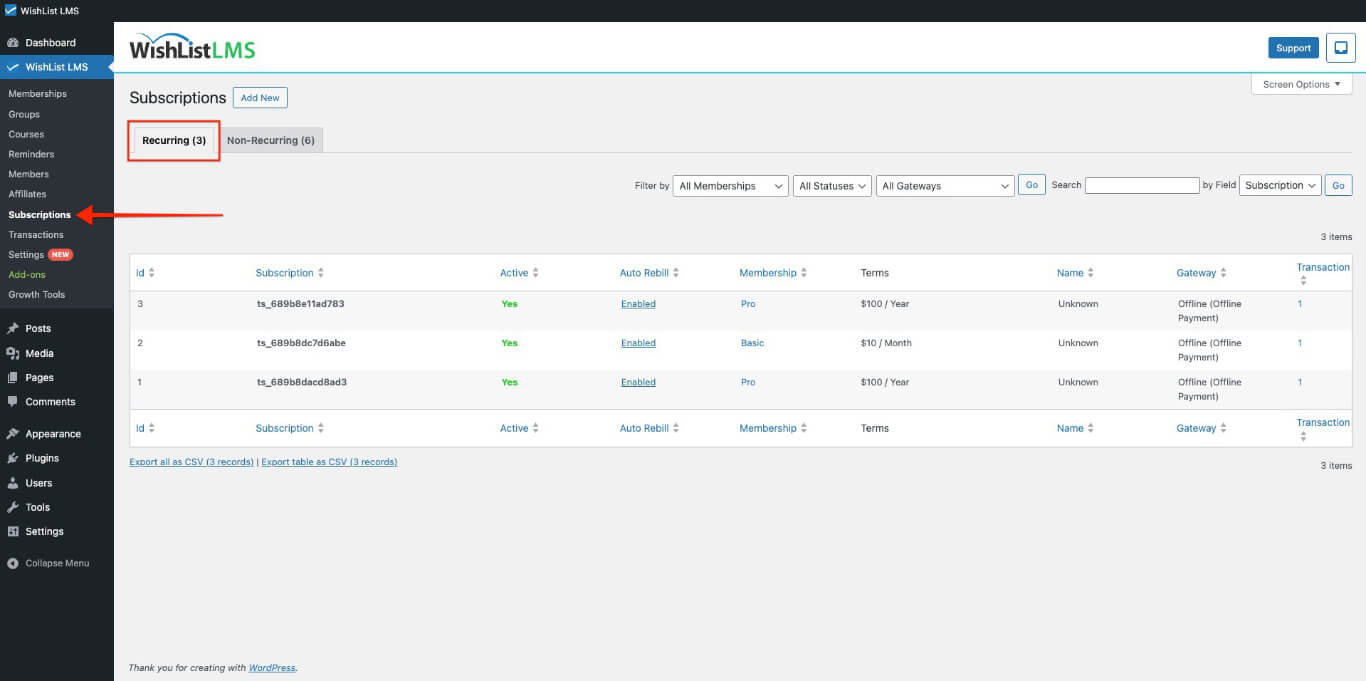
- Select the Recurring tab at the top of the page.
- Find the subscription using the Search bar or browse.
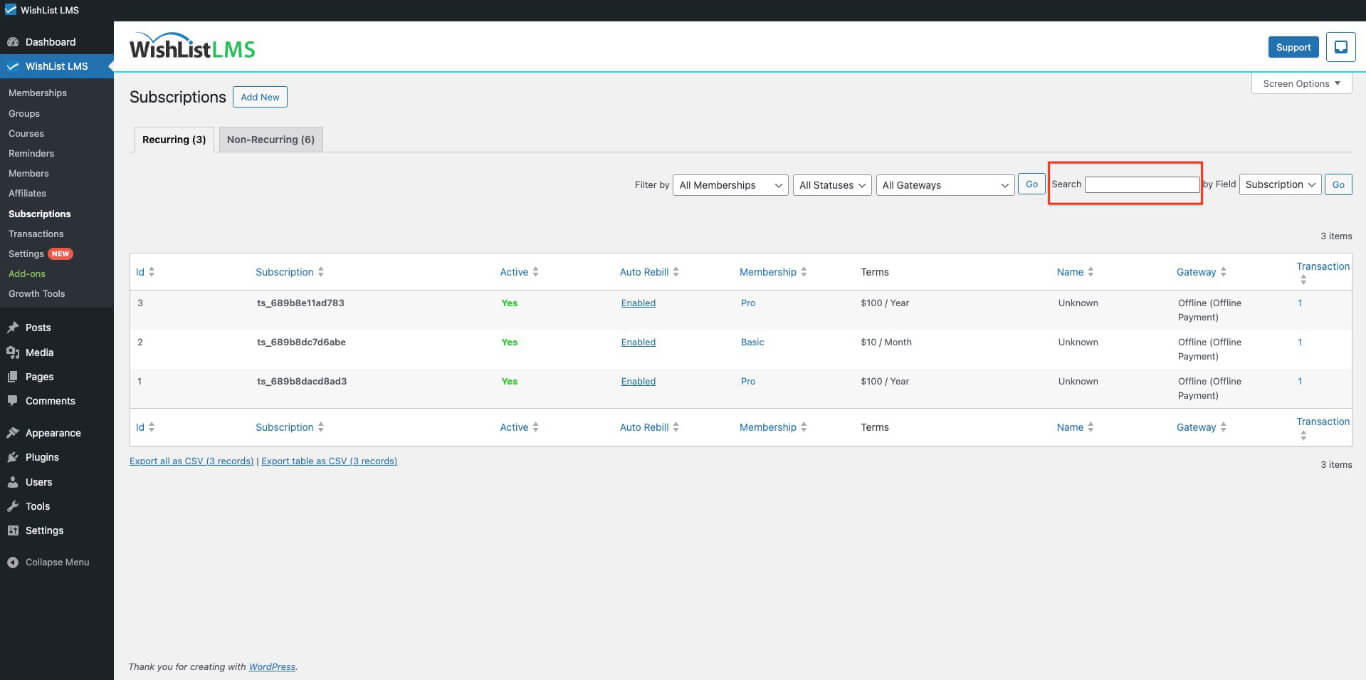
- Hover over the Subscription ID.
- Check the subscription details before continuing.
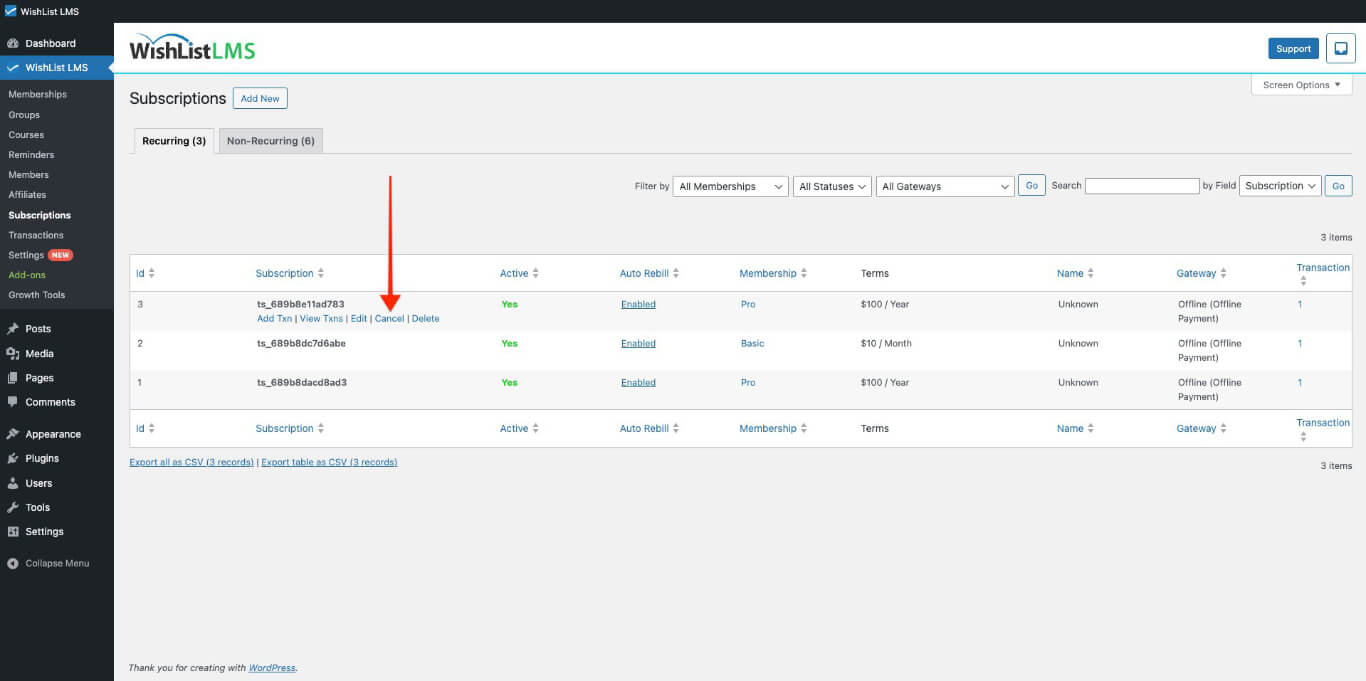
- Click the Cancel link that appears.
- Click OK on the confirmation pop-up to complete the cancellation.
Refunding and Canceling Simultaneously
You can refund the user’s last payment and cancel their subscription at the same time:
- Follow steps 1-5 from the cancellation process above.
- Click the View Txns Link.
- Hover over the unique Transaction ID for the Transaction you would like to refund in the Transaction column. Then, click to select it.
- Click the Refund Link.
- Click OK on the pop-up after ensuring you’re canceling the right subscription.
This option handles both refund and cancellation together for easy use.
Payment Gateway Requirements
Different payment methods have different rules for stopping subscriptions.
- Stripe Gateway: Stripe integrates with WishList LMS to automatically cancel subscriptions when set up correctly. Make sure your Stripe account is connected and verified.
- Offline Gateway: Cancel subscriptions manually and notify the member directly, since no automatic processor is involved.
Member-Initiated Cancellation
Members can cancel their own recurring subscriptions from the WishList LMS account page. This self-service option reduces admin workload and gives users direct control over their memberships.
A member cancels a subscription with these steps:
- Log in to the website.
- Go to the Account page.
- Open the Subscriptions tab.
- Click the Cancel link next to the active subscription.
- Confirm the cancellation on the pop-up.
After cancellation, WishList LMS stops future billing but preserves access until the current term ends.