
Afterpay lets you buy now and pay over time. In the US, you can pay in monthly payments, which might include interest.
WishList LMS lets you accept payments with Afterpay. This guide explains how to set it up for your membership site.
Prerequisites
Ensure that you meet the following requirements when configuring Afterpay payments.
- Your website has a working SSL certificate for safe payments;
- Stripe account linked to bank;
- Connect Stripe with WishList LMS for payments;
- Supported merchant locations set in WishList LMS include the United States, Canada, the United Kingdom, Australia, and New Zealand;
- Selected currency in WishList LMS settings can be USD, CAD, GBP, AUD, or NZD;
- Enable and set the Name and Address fields in WishList LMS as required.
Enabling Afterpay in WishList LMS
First, enable Afterpay / Clearpay in your Stripe Dashboard before activating it in WishList LMS:
- Log in to your Stripe Dashboard.
- Go to Settings > Payment Methods.
- Locate Afterpay / Clearpay and click Turn on.
- Complete any verification steps Stripe requires.
Next, activate the option in WishList LMS:
You can turn on Afterpay in your WishList LMS payment settings by following the steps below:
- Navigate to Dashboard > WishList LMS > Settings > Payments tab.
- Locate your configured Stripe gateway.
- Click the Customize Payment Methods button.
- Enable the Afterpay and Clearpay option within the Stripe gateway settings.
- Click the Update button in the pop-up to apply the configuration.
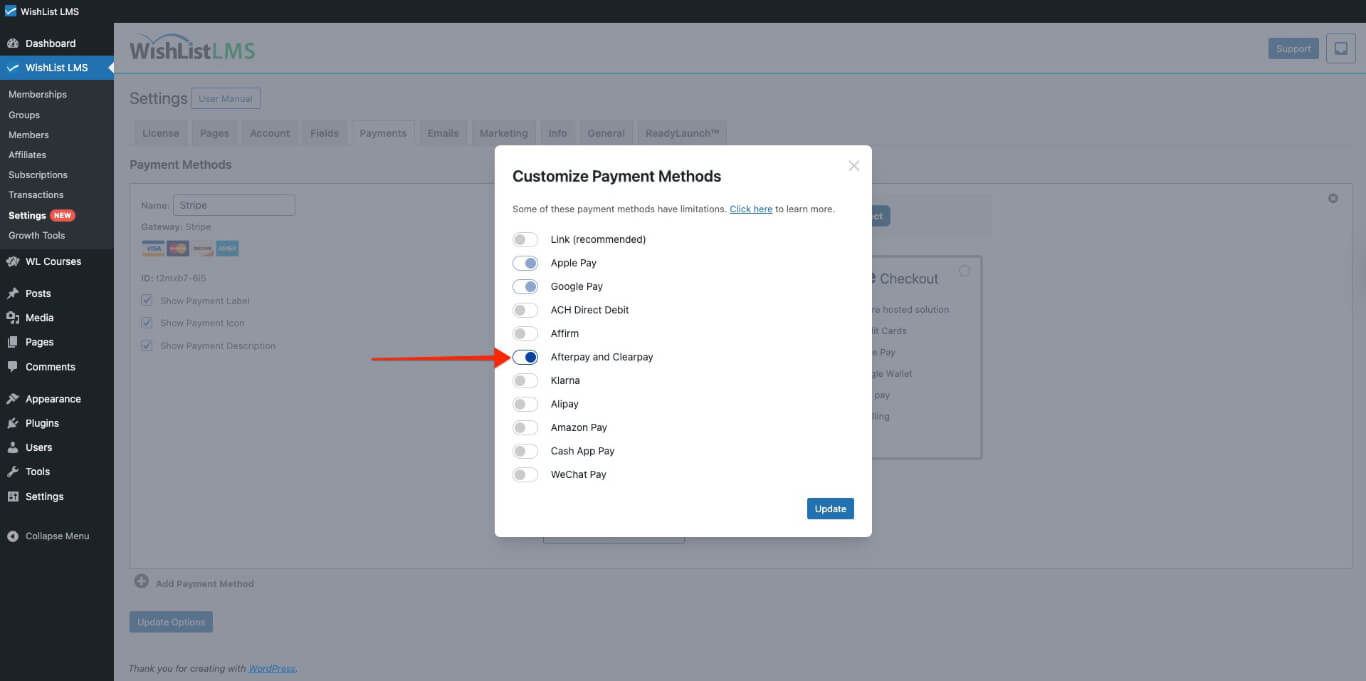
Please check more details on setting this up in the “How To Enable Payment Methods With Stripe and WishList LMS” document.
Payment Processing With Afterpay
Once set up, users will see Afterpay as a payment option on the registration forms, both in Stripe Checkout and Stripe Elements.
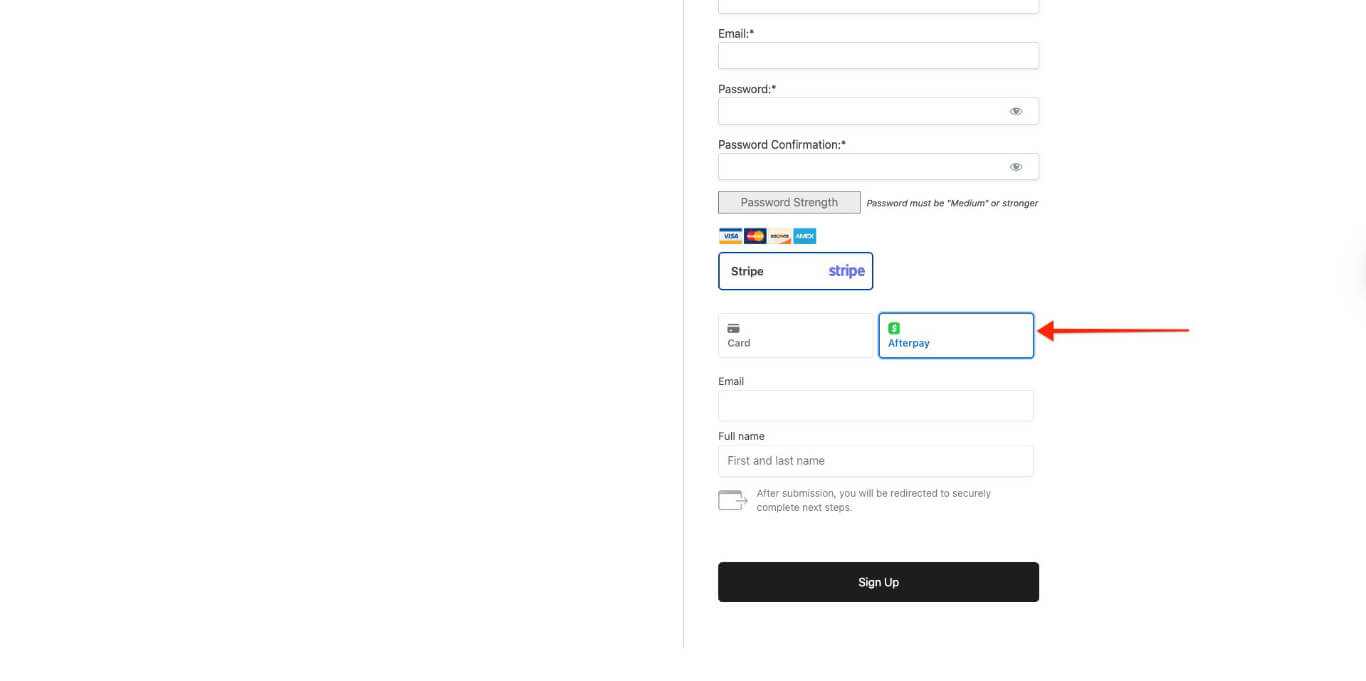
The Afterpay payment process follows these steps:
- Customer chooses Afterpay as the payment method.
- Customer completes the membership registration details and submits the registration form.
- The system takes the customer to Afterpay’s Authorization page.
- The customer authorizes the payment arrangement with Afterpay.
- After payment, the system takes the customer back to your website.
- WishList LMS activates memberships.
Afterpay Limitations and Requirements
Payment Type Restrictions
Afterpay only works for one-time payments. It is not shown on pages for regular subscriptions.
Additionally, Afterpay doesn’t support deferred payments. So, it’s not available for memberships with free or trial periods.
Geographic and Currency Requirements
Afterpay only works in certain countries. Set your merchant location in WishList LMS > Settings > Info tab to one of these countries:
- United States;
- Canada;
- United Kingdom;
- Australia;
- New Zealand.
Configure the currency in WishList LMS settings to align with these supported options: USD, CAD, GBP, AUD, or NZD.
Customer eligibility is restricted to residents of the supported countries listed above.
Required Customer Information
Afterpay requires comprehensive customer details to process payments. Enable and configure the following fields as required at Dashboard > WishList LMS > Settings > Fields tab:
- Name fields (First Name and Last Name);
- Address fields (complete address information).
Stripe Account Configuration
To accept Afterpay payments, set up your Stripe account in the US, Canada, UK, Australia, or New Zealand.
Check that your Stripe account matches your country in WishList LMS.
Additional Resources
For details about how Afterpay payments work, see Stripe’s Afterpay guide.
Check the WishList LMS Stripe instructions for setup help and troubleshooting.