
Affirm is a payment option that lets customers in the US and Canada buy memberships now and pay over time. WishList LMS works with Stripe to accept payments through Affirm.
This document explains how to set up Affirm with Stripe and WishList LMS.
Prerequisites
You need to meet some requirements before turning on Affirm.
- First, you need to install an active SSL certificate on your website to process payments securely;
- Secondly, you need a verified Stripe account with bank details connected. Make sure to connect Stripe to WishList LMS on your website and test it with WishList LMS to check it works properly;
- Next, Affirm is only available in the US and Canada. Therefore, set the currency to USD in WishList LMS settings;
- Finally, set the country in your Stripe account and WishList LMS settings to the United States or Canada.
Accepting Payments With Affirm
WishList LMS works with Affirm only through Stripe. Once you’ve set up and tested your Stripe connection, follow these steps to turn on Affirm on your registration forms.
First, enable Affirm in your Stripe Dashboard before activating it in WishList LMS:
- Log in to your Stripe Dashboard.
- Go to Settings > Payment Methods.
- Locate Affirm and click Turn on.
- Complete any verification steps Stripe requires.
Next, activate the option in WishList LMS:
- Navigate to Dashboard > WishList LMS > Settings > Payments tab.
- Locate your connected Stripe gateway.
- Click the Customize Payment Methods button.
- Toggle on the Affirm option.
- Click the Update button in the pop-up to save the settings.
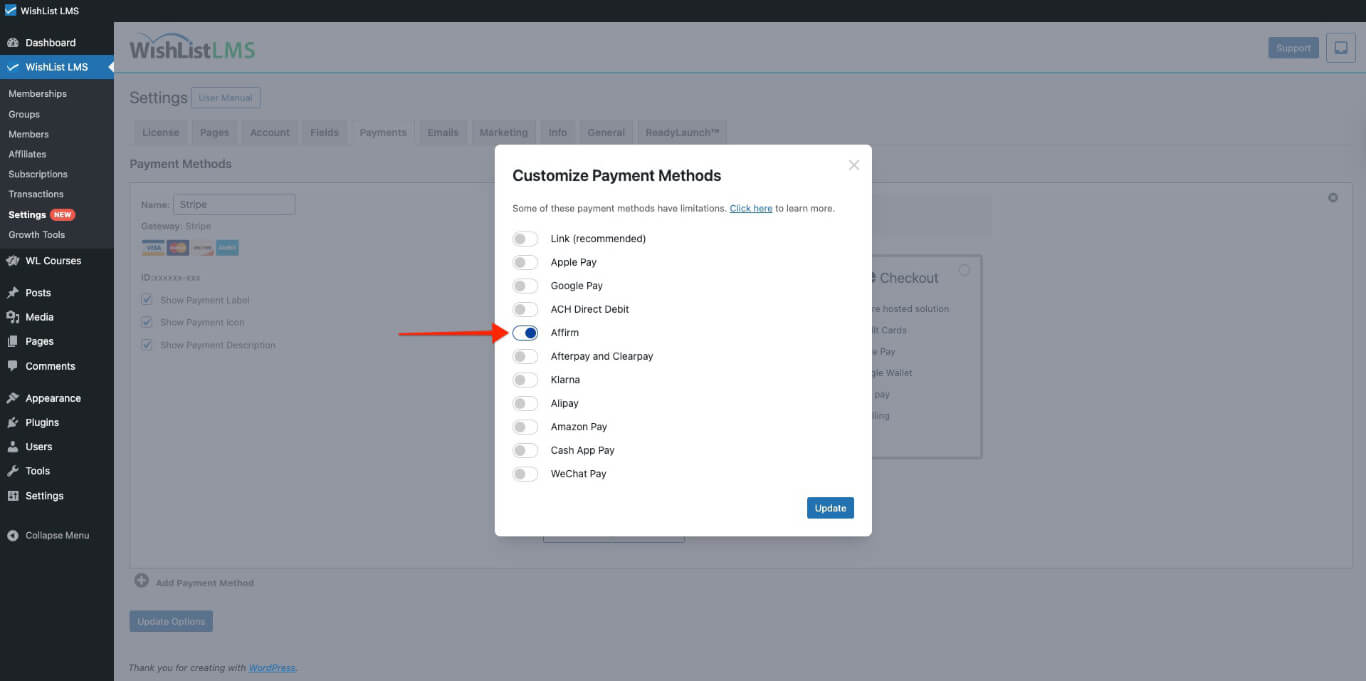
Please check more details on setting this up in the “How To Enable Payment Methods With Stripe and WishList LMS” document.
Membership registration forms will now show Affirm as a payment option. You can see this option on both Stripe Checkout and Stripe Elements forms.
When users register, they will go to Affirm’s website to pay. They need to agree to the payment plan. After paying, your website will automatically take them back.
Key Points About Using Affirm
The Affirm payment option shows up only when certain conditions are met. There are some rules set by both Affirm and Stripe that apply.
First, Affirm is only for one-time payments. That’s why you won’t see it on pages for recurring subscriptions.
Furthermore, Affirm doesn’t support paying later. So, it’s not available for memberships with free or trial periods.
Additionally, activate the Name and Address fields in WishList LMS to receive payments from Canadian users. Find these options at Dashboard > WishList LMS > Settings > Fields tab.
For more details, see the Stripe Affirm payments guide.