
WishList LMS offers LaunchPad™ (Plataforma de lanzamiento) templates that you can personalize with your branding. No coding skills are needed. If the Classic templates don’t fit your needs, you can switch to LaunchPad™ templates for professional membership pages.
LaunchPad™ Templates
LaunchPad™ includes pre-made templates for the following page types:
Additionally, if you have Lista de cursos LMS deseados active on your website, LaunchPad™ provides templates for all course-related pages. This template applies to Courses, Lessons, Quizzes, and Assignments:
Accessing the LaunchPad™ Templates
LaunchPad™ templates are applied to your website by default. To customize them:
- Inicie sesión en el área de administración.
- Ir a Panel de control > Lista de deseos LMS > Configuración.
- Haga clic en el botón LaunchPad™ (Plataforma de lanzamiento) ficha.
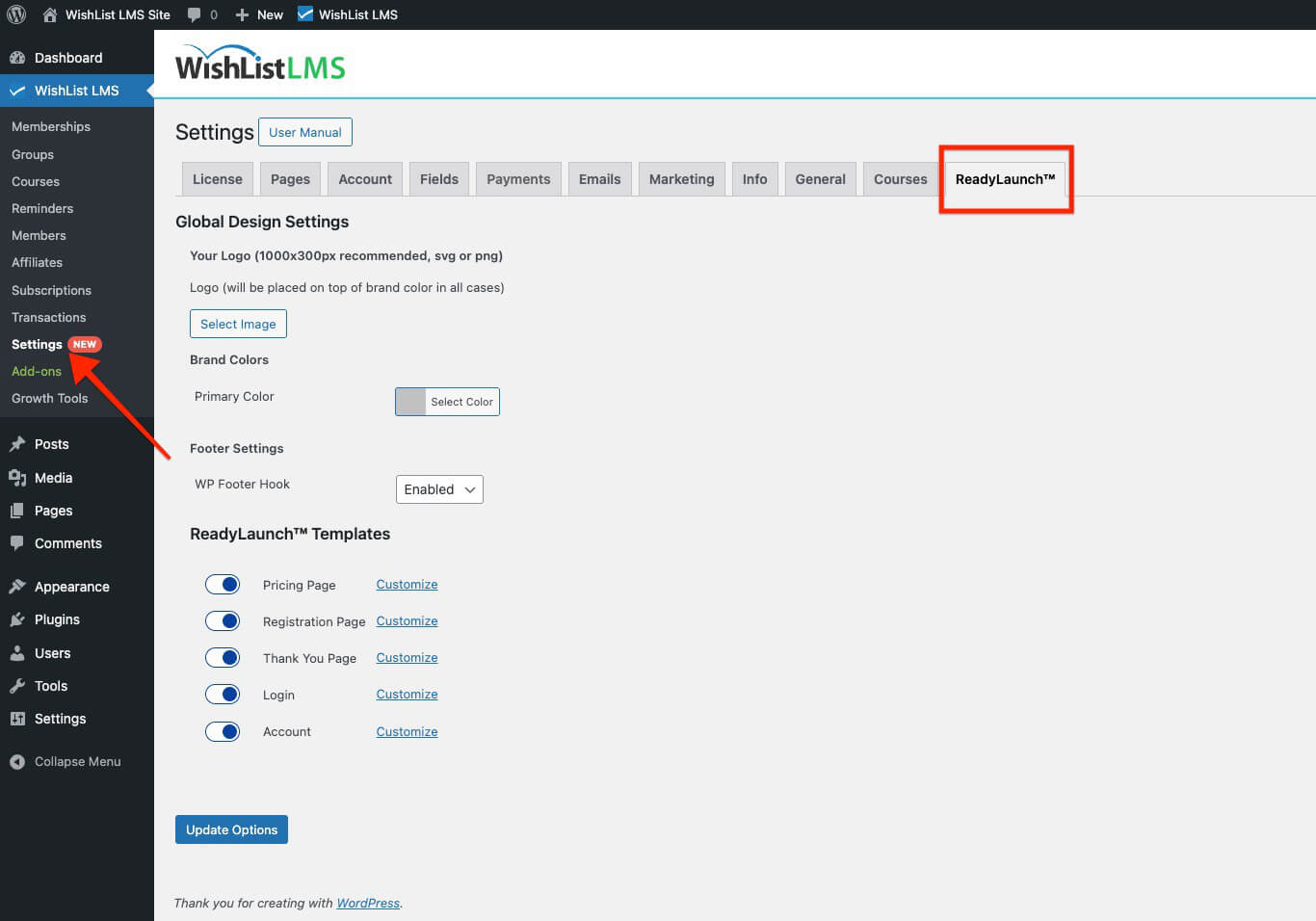
Global Design Settings
Brand colors and logo options in LaunchPad™ Global Design Settings help maintain brand consistency across all templates.
Set Your Logo
You can select a logo that is positioned at the top of your template pages. To add your logo, follow these steps:
- Haga clic en el botón Seleccionar imagen botón.
- Upload your logo file.
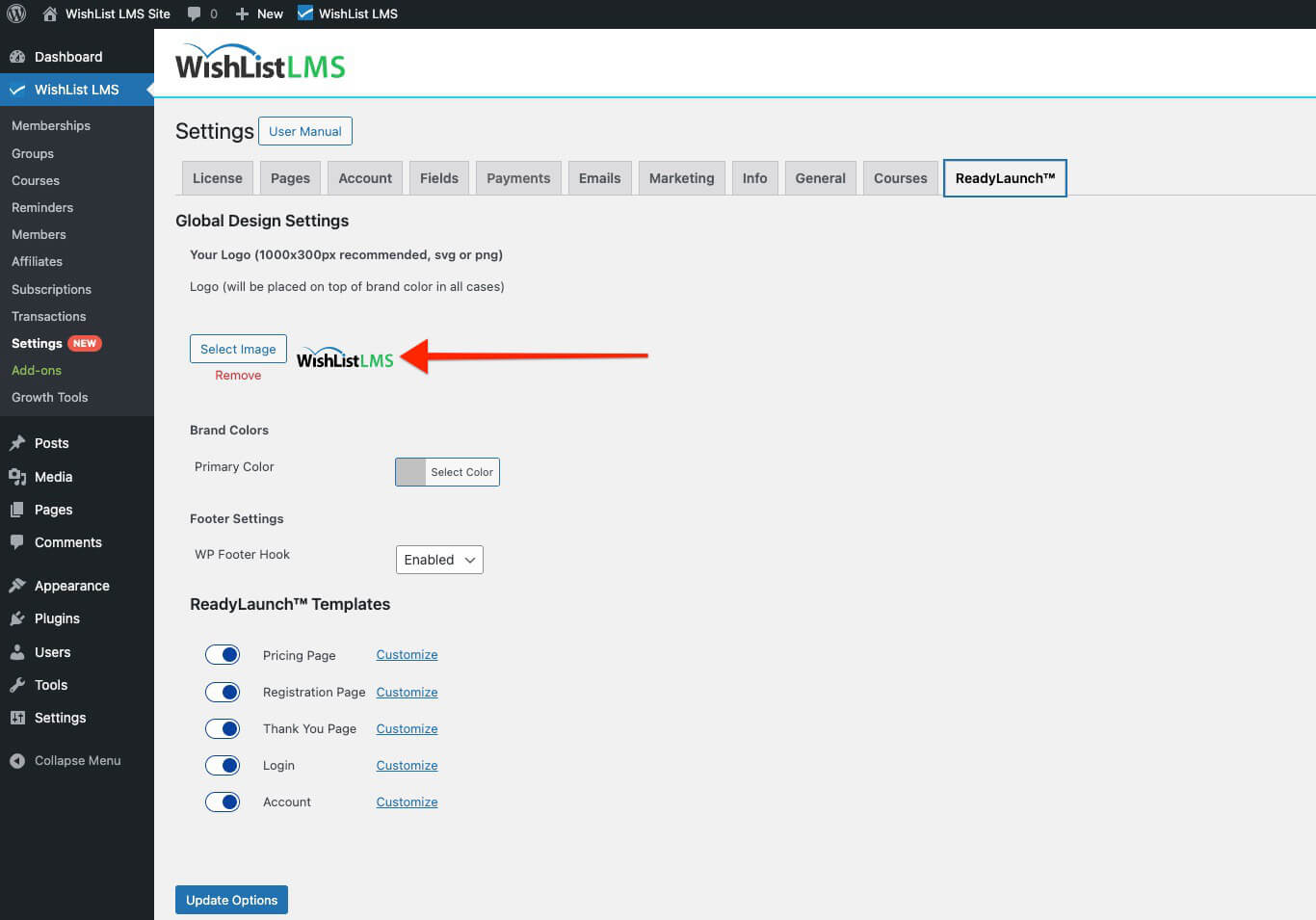
For optimal results, use an image with these specifications:
- Filetype SVG or PNG;
- Transparent background;
- Maximum width 1000px;
- Maximum height 300px.
Set Your Brand Colors
To set the primary brand color used on all LaunchPad™ templates:
- Haga clic en el botón Select Color button under Brand Colors.
- Use the color picker or add your color’s hex code.
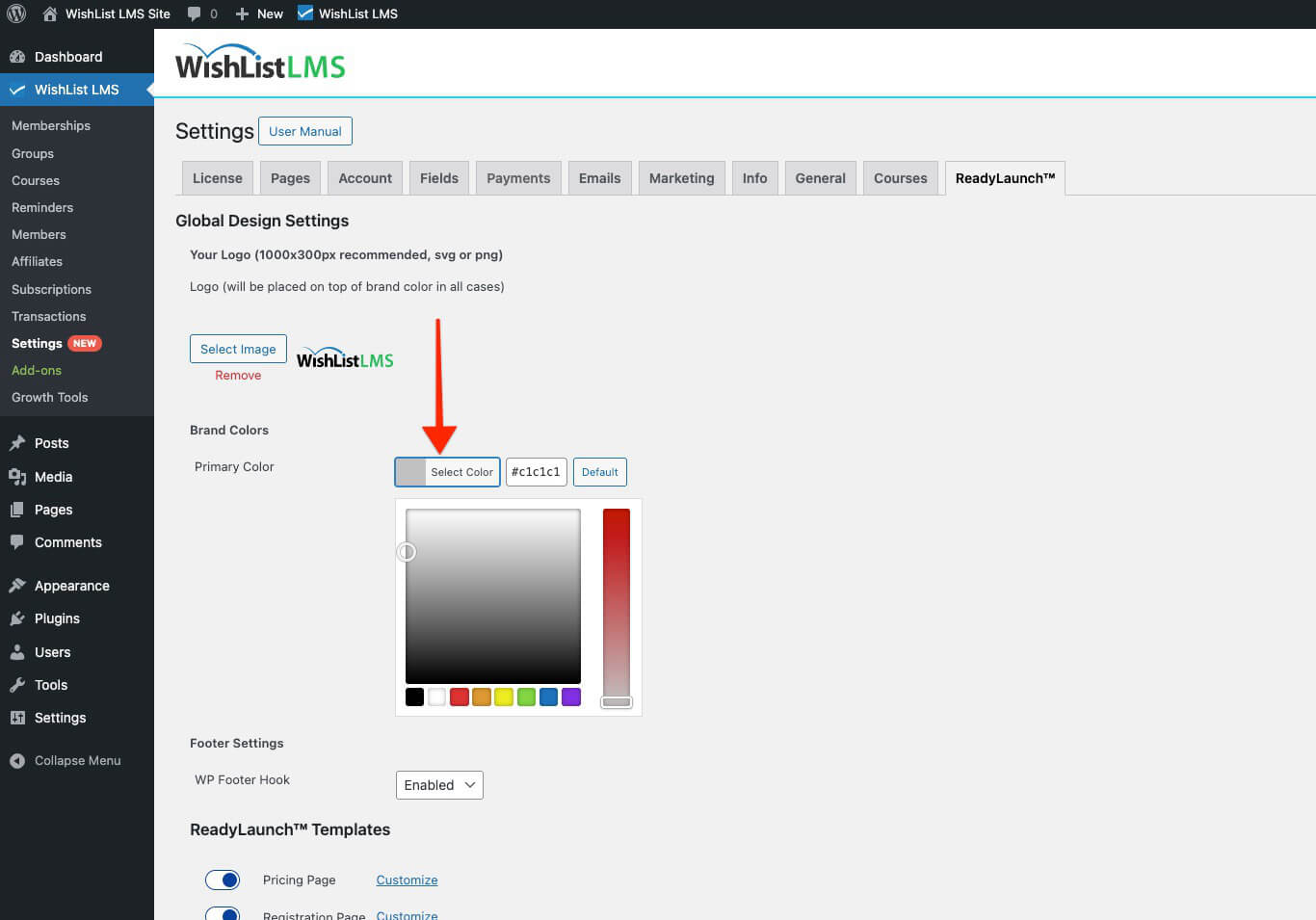
You can click the Default button to return to the default blue color (hex code: #06429e).
Footer Settings
By default, Plantillas LaunchPad come with their own styles and have the WordPress Footer Hook turned off. This removes other styles and scripts from the pages. Adding third-party plugins to these pages might cause problems.
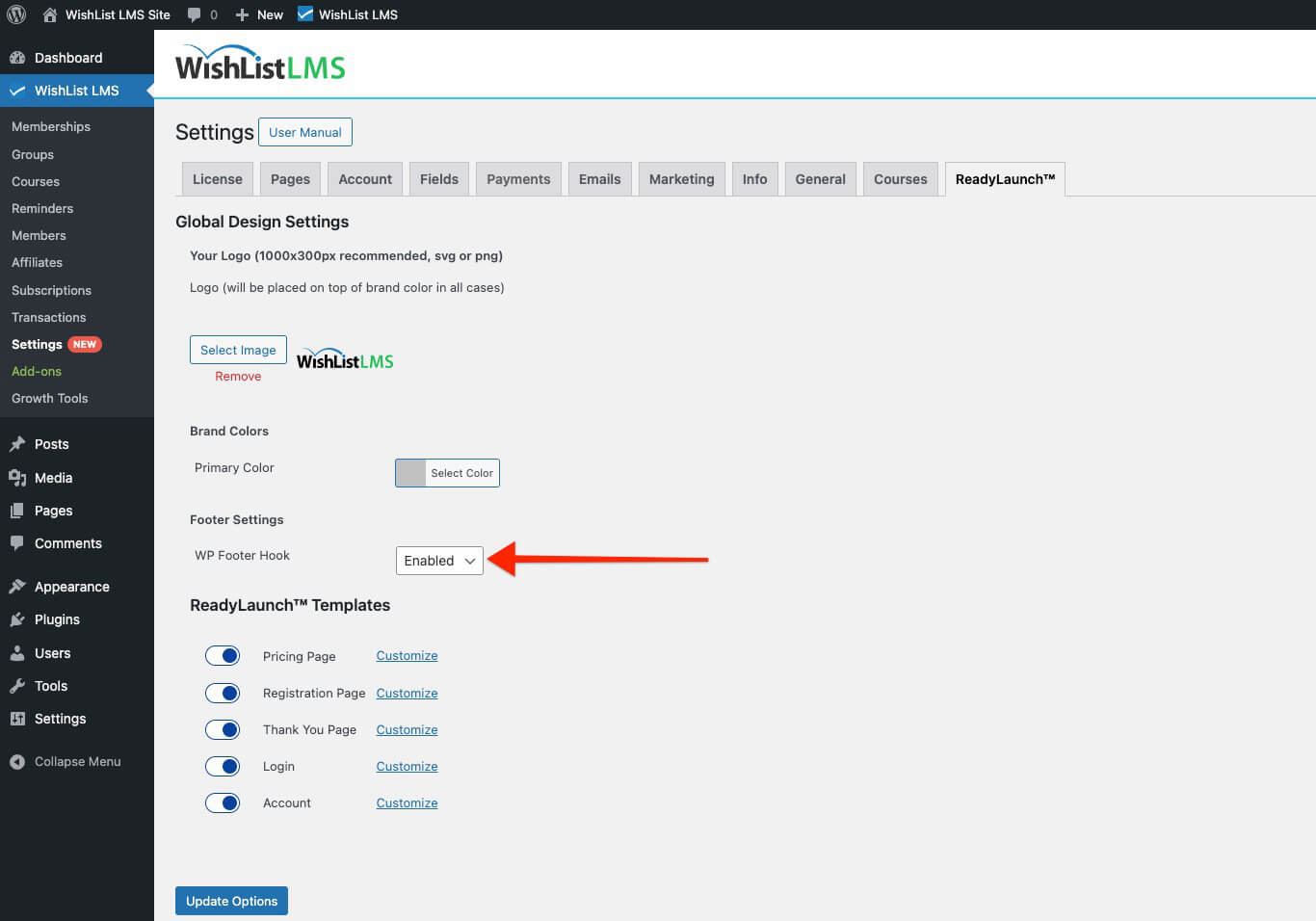
Some plugins need the WordPress Footer Hook to work. To turn it on:
- Vaya a Dashboard > WishList LMS > Settings > LaunchPad™ tab.
- Seleccione Enabled under the WP Footer Hook desplegable.
Disable the LaunchPad™ Templates in WishList LMS
You can still use classic WishList LMS templates for your pages. You can also use LaunchPad™ on some pages and old templates on others.
To deactivate LaunchPad™ templates:
- Ir a Dashboard > WishList LMS > Settings > LaunchPad™ tab.
- Toggle off the templates you want to deactivate.
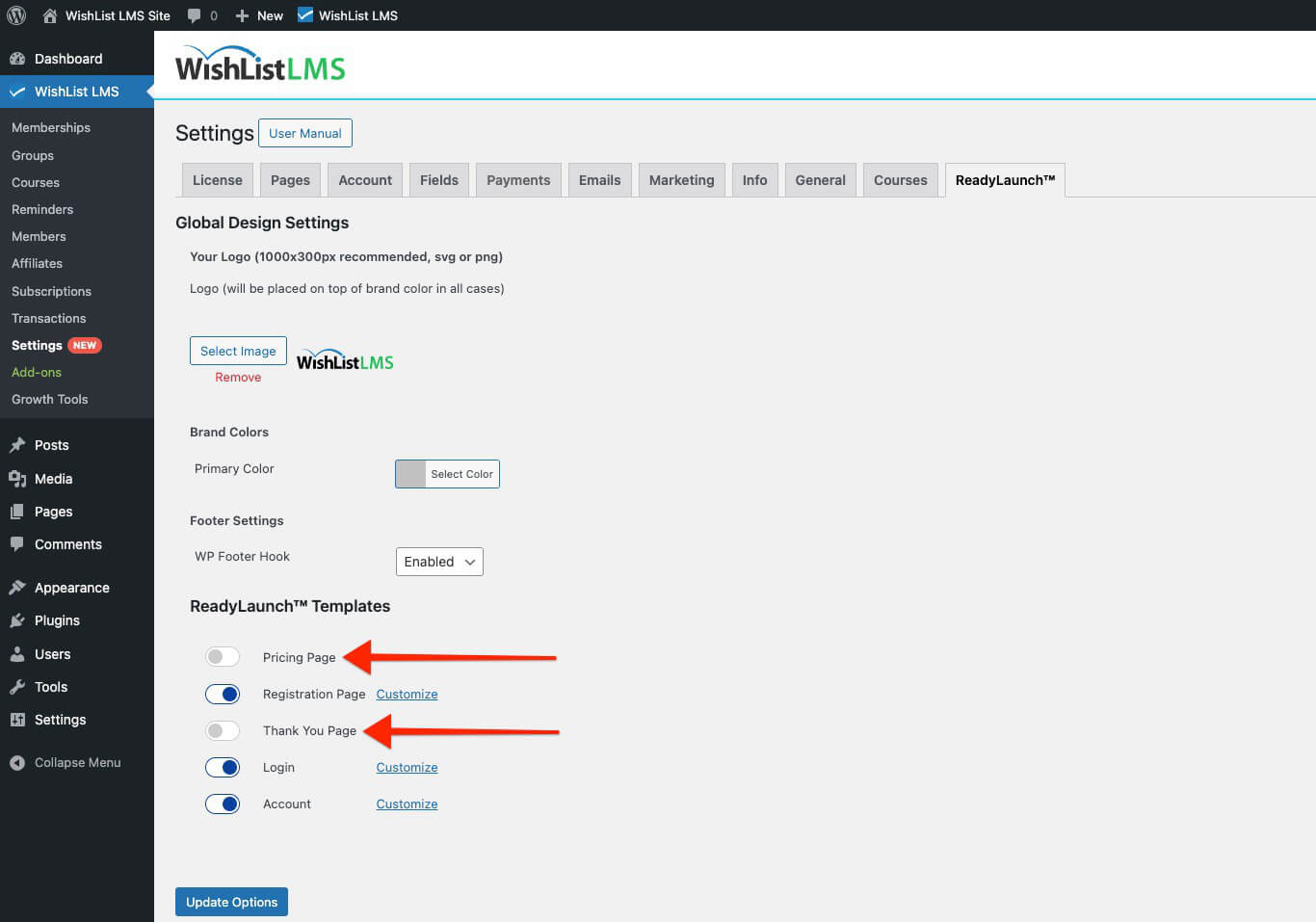
You can turn templates on or off whenever you want. This helps you design your membership pages the way you like.