
WishList LMS shortcodes let you add features and information to your membership website. You can use them to show member details, subscription info, and login forms on your WordPress pages and posts.
This document explains all the WishList LMS shortcodes with examples and instructions. Use these shortcodes to customize your membership site and improve user experience.
What Is a Shortcode?
Shortcodes are small codes you can put in your WordPress pages and posts. When visitors view the page, the codes are replaced with dynamic content.
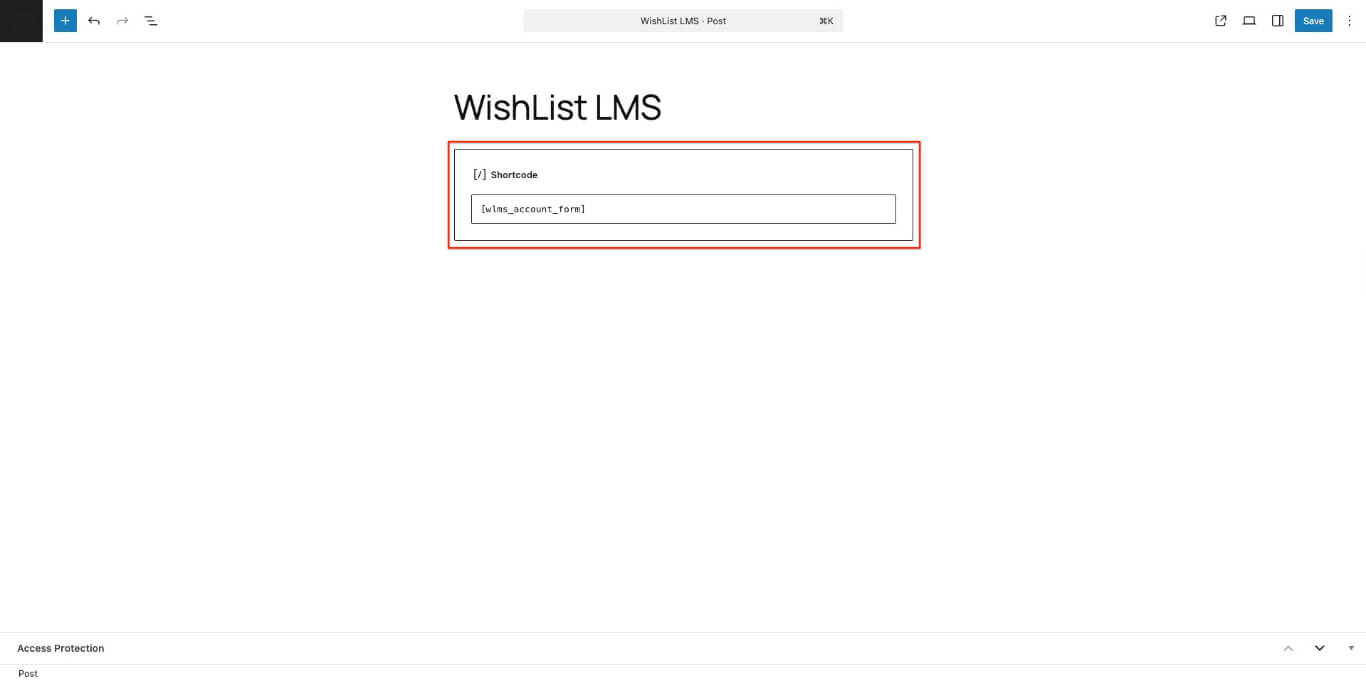
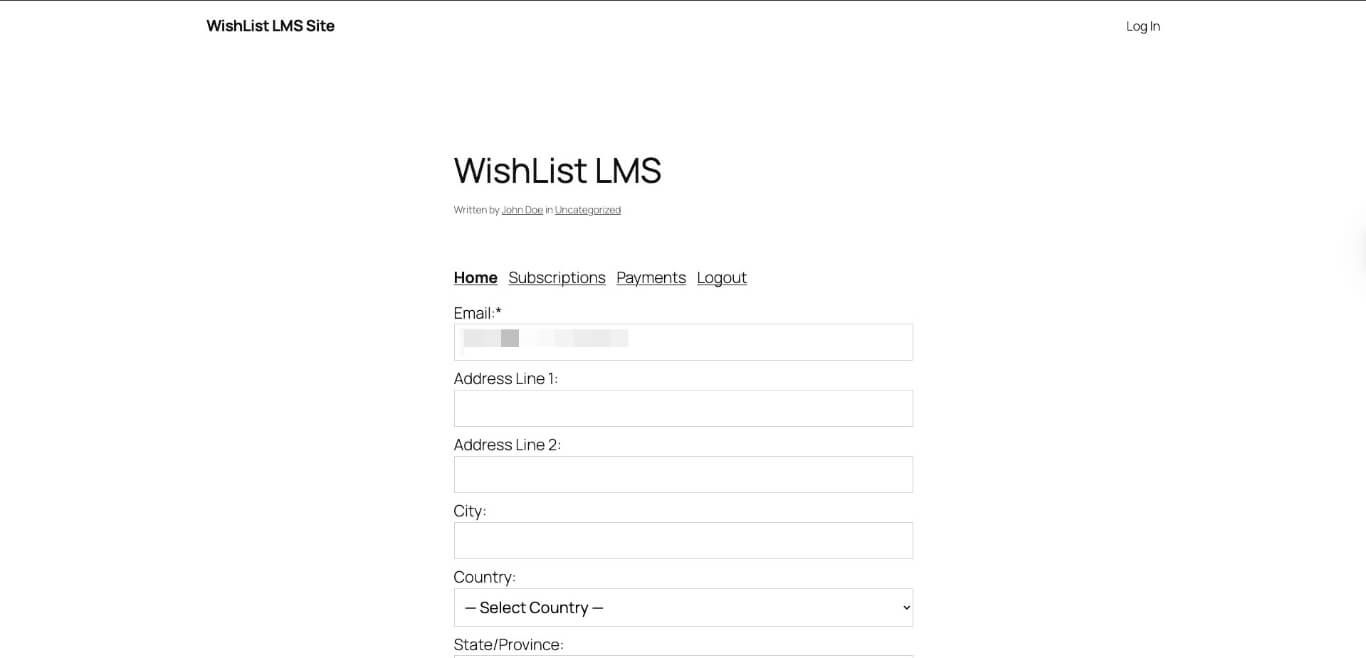
These are the currently available shortcodes:
Account Related Shortcodes
This shortcode links to the Account page in WishList LMS. It can be used on any page or post.
This shows the user account information. It’s usually only used if you want to display account details somewhere other than the default WishList LMS Account page. It can also be helpful for users with third-party translation plugins who create different account pages for each language.
This shortcode can display information about the currently logged-in user using a slug.
These are the supported slugs. Replace the “slug” in the above shortcode with any of your preferred slugs from the list below:
| Slug | Result |
| full_name | John Doe |
| full_name_last_first | Doe, John |
| first_name_last_initial | John D. |
| last_name_first_initial | Doe, J. |
| first_name | John |
| last_name | Doe |
| user_login | johndoe |
| user_email | [email protected] |
| nickname | johndoe |
| description | (aka Biographical info) |
| wlms-address-one | 123 Fake Street |
| wlms-address-two | Apt. 123 |
| wlms-address-city | Vidor |
| wlms-address-state | Texas |
| wlms-address-zip | 77662 |
| wlms-address-country | USA |
| wlms_user_message | The “Custom WishList LMS Account Message” you have defined for the member in their profile |
| user_registered | The date/time the user first joined your site |
| display_name | johndoe |
| ID | The unique ID assigned to the user upon registration. It must be entered as an ID, not an “id”. |
| “Your custom Slug” | Any of the Custom Account Field slugs in the WishList LMS Settings. |
For example, you might want to show the user’s first name on a page. Here’s a shortcode for that.
If John Doe visits the page, it will show John where the code was.
User’s Files
This shows a link to view or download a file uploaded by a user. Replace wlms_slug with the name of your custom field from the Dashboard > WishList LMS > Settings > Fields. If you don’t specify user_id, it will show the file for the current user. Otherwise, it will show the file for the user with that ID.
You don’t need to include the closing shortcode tag [/wlms_user_file]. If you do, the text between the tags will be used as the link text.
WishList LMS custom fields only work on the account or membership registration pages. If you add a shortcode to other pages, it won’t show these custom fields.
Subscription Related Shortcodes
Displays a list of the current user’s active and inactive subscriptions.
A new status option is now available. To use it, set the status to “all” or just leave it out.
It shows your current active and inactive subscriptions. When you choose “active”:
You can see your active subscriptions. To view inactive ones, use the “expired” status.
The subscriptions list can be sorted by date:
Or title:
They can be sorted in ascending order:
Or descending order:
Login Related Shortcodes
They show login or logout links depending on whether the user is logged in.
The login link will direct the user to the WishList LMS login page, where they can log in.
Login
The logout link will log the user out and redirect them to the Logout Redirect URL you have set in your Account tab on WishList LMS Settings page.
Login
The shortcode below shows a login form on a page or post. It can be used anywhere. When use_redirect = “true”, WishList LMS will redirect the user to the login redirect URL setting located in the WishList LMS Settings page.
Unauthorized Access Related Shortcodes
This message appears when an unauthorized user tries to access the site. If you set up WishList LMS to send unauthorized users to a specific page, you can use a shortcode there. You can also use shortcodes to show or hide certain content on that page.
On one page, you can show or hide content using shortcodes.
Shortcode to show the content:
Shortcode to hide the content:
Content to hide in here
Both shortcodes above support the if=”X” attribute, where “X” can be “loggedin” or “loggedout”.
OR
You're now logged out!
Both shortcodes check if the user is logged in or logged out. They are not related to the memberships the user has bought.
This shortcode lets you show or hide content on your website. You need to include certain parameters, but only one at a time.
| Shortcode Parameters | Description |
| rule(s) * | If you plan to use a single Rule ID, then set this to rule=”X”. If you plan to use multiple Rule IDs, then set this to rules=”X, XX, XXX”. Where X’s = the IDs of the Rule(s). |
| membership(s) * | If you plan to use a single Membership ID, then set this to membership=”X”. If you plan to use multiple Membership IDs, then set this to memberships=”X, XX, XXX”. Where X’s = the IDs of the Membership(s). Refer to WishList LMS documentation for information about finding a Membership’s ID. |
| ifallowed* | When set to ifallowed=”show”, the content in between is shown to authorized members only. When set to ifallowed=”hide”, the content is hidden from authorized members. |
| unauth | If you plan to use a single Membership ID, then set this to one of the possible values: message – the user will be shown an unauthorized message when they are not authorized to use it. login – the user will see the login form when they are unauthorized. Both – the user will see the default unauthorized message followed by the login form. hide (or if the parameter is excluded) – does not show a message or login and simply hides the content. Note: when set to “message” or “both” AND the rule has a custom unauthorized message, it will display the custom unauthorized message instead of the global one. |
| unauth_message | Use this to override the default unauthorized message. This only applies when the “unauth” attribute above is set equal to “message” or “both”. |
An example shortcode using all the above attributes might look like the following:
Download link hidden, please login or purchase a membership to view.
Registration Related Shortcodes
This is useful for adding content above or below the group pricing boxes. On the Group page, you don’t need to specify a group ID. If you use it somewhere else, you will need to include the group ID.
Shows a link to the Membership identified by “id”.
Link text in here
Use the URL set in the “Membership access URL” option under Membership Options. Put this link anywhere on your site to give members access. Replace membership.id=123 with your actual Membership ID. Want to find your Membership ID?
Link text here
This can only be used on the Membership page. It is helpful to add content above or below the registration form.
Use this shortcode on any WordPress page, post, or custom post to show a membership registration form. Replace 123 with your membership’s ID. Wondering where to find the ID?
Note: To use this, turn on the Global CSS option in your Dashboard under WishList LMS > Settings > General. This helps prevent errors on the form.
You can use this shortcode on your “thank you” pages to show messages to users who signed up through your offline gateway. Just enter your gateway’s ID where it says gateway_id=”abc-123″. It can give extra instructions when users buy your membership offline. Although it’s mainly for offline gateways, you can also use it with any other WishList LMS-supported gateway.
This shows the active membership names of members. If no user ID is provided, it uses the current member. If a member has multiple active memberships, their names are shown separated by commas. You can also add a custom message to display when a member has no active subscriptions. If no message is set, nothing will be shown.
This shortcode only works on the thank you page or in thank you messages. It won’t work anywhere else.
It supports the following %%variables%%, which are automatically replaced with values from the purchase.
| Variable | Description |
| %%subtotal%% | Outputs the sub-total of the first payment. If the first payment was a free trial period, this will be 0.00. If the first payment was a paid trial period, this will be the subtotal of the trial period payment. |
| %%total%% | Outputs the sub-total + tax of the first payment. If the first payment was a free trial period, this will be 0.00. If the first payment was a paid trial period, this will be the total of the trial payment. |
| %%tax_amount%% | Outputs the tax amount of the first payment. If the first payment was a free trial period, this will be 0.00. If the first payment was a paid trial, it will be the tax amount of the paid trial payment. |
| %%tax_rate%% | Outputs the user’s tax rate on this purchase. |
| %%txn_num%% | Outputs the Transaction Number of the first payment. For recurring payments, this transaction number will most likely be a temporary number generated by WishList LMS, as it takes some time for the payment gateway to process the first payment. |
| %%sub_id%% | Outputs the ID of the recurring subscription. If the purchase made is not recurring, this variable will not be replaced. |
| %%txn_id%% | Outputs the ID of the first transaction. For recurring subscriptions, this ID will, in most cases, be the ID of the hidden grace period |
| %%sub_num%% | Outputs the Subscription Number of the recurring subscription. If the purchase made is not recurring, this variable will not be replaced. With PayPal Standard, this may be a temporary number generated by WishList LMS, as it can take some time for the gateway to update the record with a valid subscription number. |
| %%membership_amount%% | Outputs the regular recurring cost of a recurring subscription. If the purchase made is not recurring, this variable will not be replaced. |
| %%trial_days%% | Outputs the number of days in the paid or free trial period for a recurring subscription. If the purchase made is not recurring, this variable will not be replaced. |
| %%trial_amount%% | Outputs the cost of the trial period for a recurring subscription. If the purchase made is not recurring, this variable will not be replaced. |
| %%username%% | Outputs the member’s username. If you have configured the WishList LMS Settings page to make the user’s email address their username, then this will output their email address. |
| %%user_email%% | Outputs the member’s email address. |
| %%user_id%% | Outputs the member’s WordPress User ID. |
| %%membership_name%% | Outputs the name (title) of the Membership purchased. |
| %%membership_id%% | Outputs the ID of the Membership. |