
GrabPay users in Singapore and Malaysia can use the digital wallet for transactions. Furthermore, customers can add money to their wallet and pay using it.
The WishList LMS works with Stripe to accept GrabPay payments. Therefore, this guide explains how to set it up and provides important details about using GrabPay with Stripe and WishList LMS.
Prerequisites
Before you turn on GrabPay, make sure you have everything ready.
- Your website needs a secure SSL certificate for safe payments.
- You need a verified Stripe account with your bank details to run your membership site. It may take a few days to verify your business with Stripe. Do this first before launching. Make sure your Stripe account matches your business for legal compliance.
- GrabPay only works in certain countries and currencies. Set the currency in WishList LMS settings to SGD or MYR.
- Additionally, set your merchant location to Singapore or Malaysia in WishList LMS Info tab, matching your Stripe account country.
- Finally, connect Stripe to WishList LMS on your website. Then, test the payment to make sure it works before turning on GrabPay.
Enabling GrabPay in WishList LMS
WishList LMS works with GrabPay only through Stripe. Once you’ve set up and tested your Stripe connection, first enable GrabPay in your Stripe Dashboard:
- Log in to your Stripe Dashboard.
- Go to Settings > Payment Methods.
- Locate GrabPay and click Turn on.
- Complete any verification steps Stripe requires.
Next, activate the option in WishList LMS by following these steps to turn on GrabPay on your registration forms:
- Navigate to Dashboard > WishList LMS > Settings > Payments tab.
- Locate your connected Stripe gateway.
- Click the Customize Payment Methods button.
- Toggle on the GrabPay option.
- Click the Update button in the pop-up to save the settings.
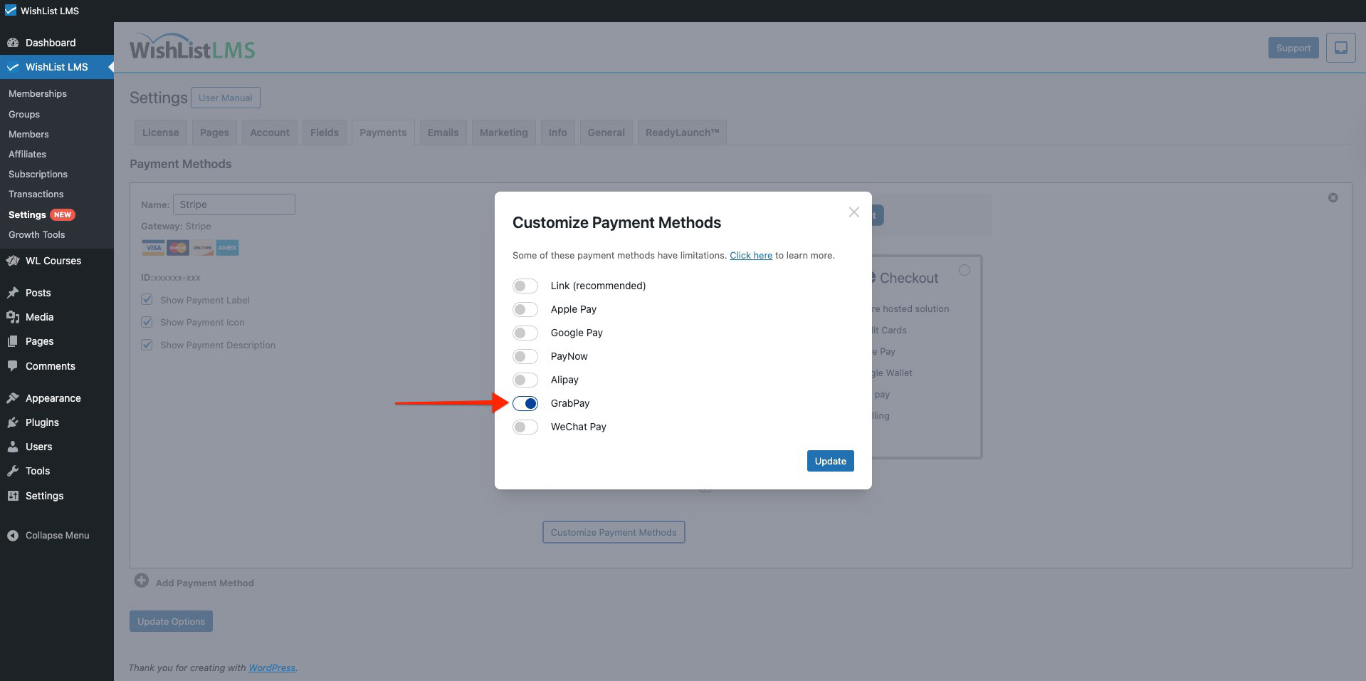
Please check more details on setting this up in the “How To Enable Payment Methods With Stripe and WishList LMS” document.
Membership registration forms will now show GrabPay as a payment option. You can see this option on both Stripe Checkout and Stripe Elements forms.
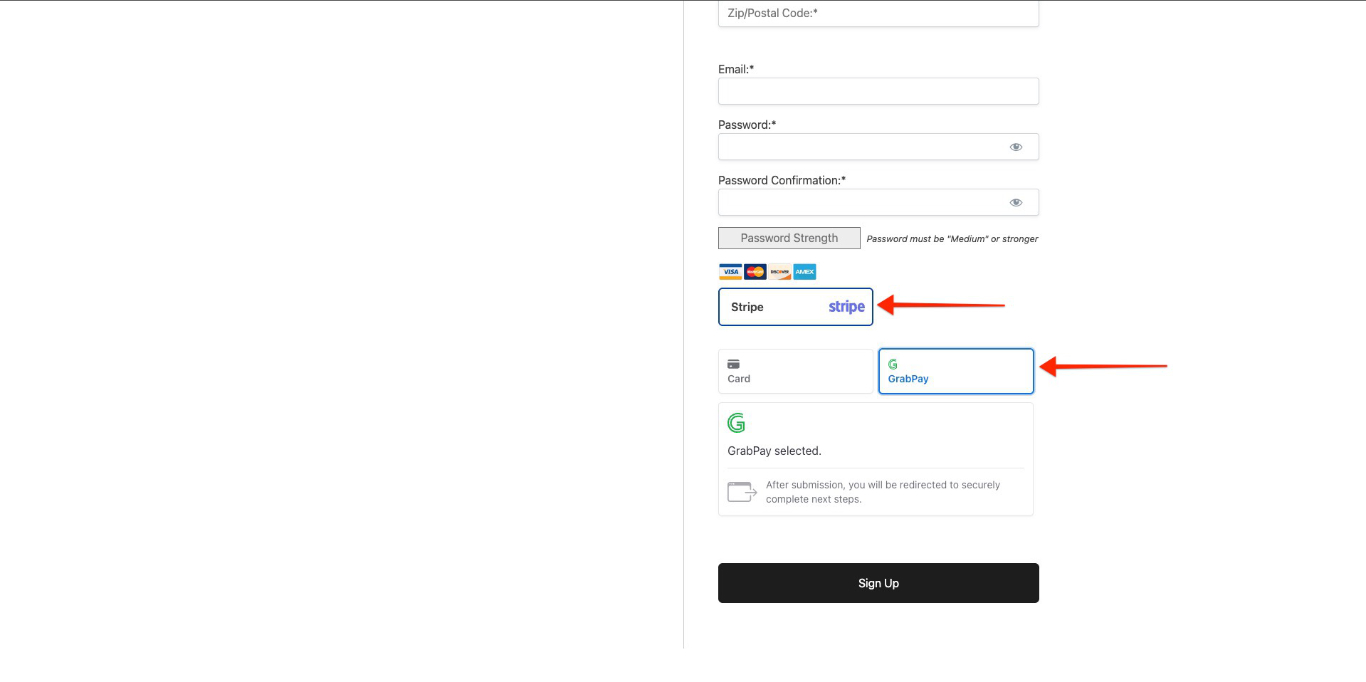
When users choose GrabPay and submit the form, they’ll be taken to GrabPay to approve the payment. After paying, they’ll come back to your website automatically.
GrabPay Limitations
GrabPay will only show the payment option when certain conditions meet. Stripe and GrabPay impose rules that limit their use.
First and foremost, GrabPay only works for one-time payments. Therefore, you won’t see it on pages for ongoing subscriptions.
Furthermore, GrabPay cannot be used for memberships with free or trial periods because it doesn’t support deferred payments.
For more details, see Stripe’s GrabPay guide.