O Informações tab in WishList LMS requires your business address. This allows it to calculate taxes accurately. Additionally, it shows business details on customer receipts. This document outlines the options available in the tab.
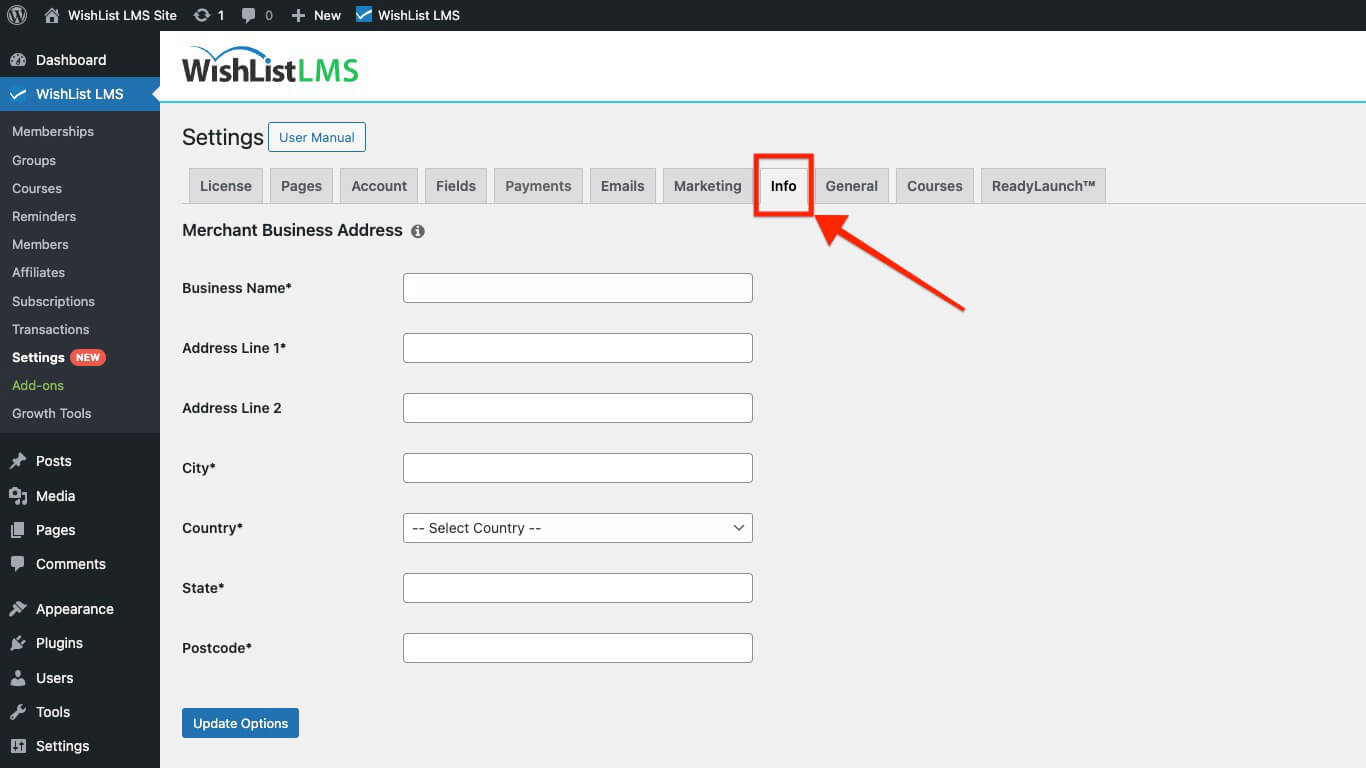
Accessing and Understanding the Info Tab Settings
The Info tab needs business information. Provide your address, city, country, state, and postcode. Also, accurate data is important. This ensures correct tax rates.
To access the Info tab:
- Navegue até Painel de controle > WishList LMS > Configurações.
- Clique no botão Informações tab.
Merchant Business Address
The section includes the following fields for configuration:
- Business Name*
- Address Line 1*
- Address Line 2
- City*
- Country*
- State*
- Postcode*
Fields marked with an asterisk (*) are required and must be filled out.
State Code Requirements
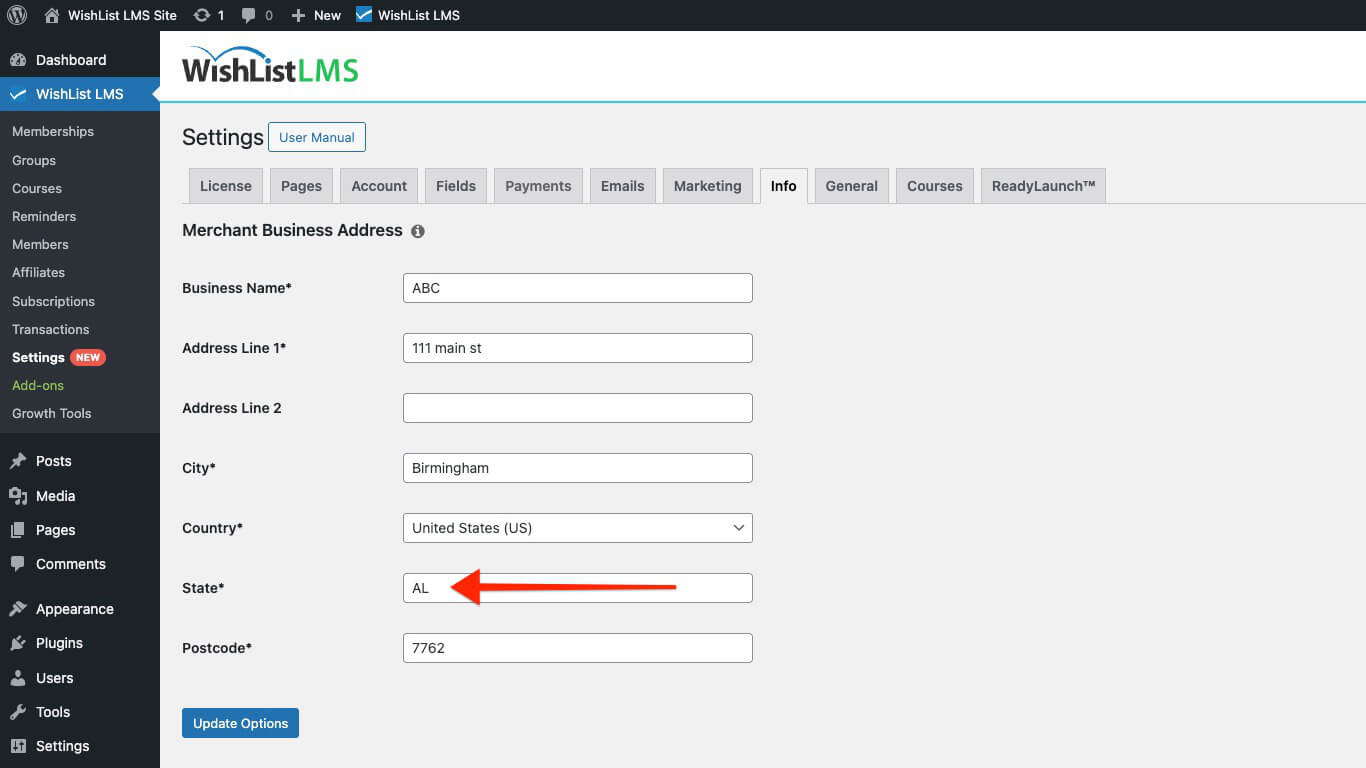
O State field requires two-character (ISO 3166) Alpha-2 codes for accurate tax calculations.
Follow these steps to find the correct code:
- Find the state or province code for the country you need.
- Search for your country name.
- Click the link for your country.
- Scroll down and look under the “3166-2 code” column.
- Note the two-character state or province code that appears after the country code. For example, the code for Alabama, United States is “US-AL,” the “US” is the country code, and “AL” is the state code.
- Enter the two-letter state code in the State field. For Alabama, use “AL” in this field.