
Liste de souhaits pour les cours LMS come with the LaunchPad™ Courses template already enabled. The Courses LaunchPad™ offers options to customize the colors, logos, navigation, and progress bars to enhance your learning experience.
This guide explains how to change and personalize the LaunchPad™ Courses Template.
Accessing the LaunchPad™ Courses Template
The LaunchPad™ Courses template, in essence, is a full-screen template that features a header, a sidebar, and a footer. Additionally, it comes with a variety of styles to enhance its appearance. Thus, this design facilitates a comprehensive learning experience.
You can change the template to suit your needs and brand. Follow these steps to customize:
- Naviguez jusqu'à Dashboard > WishList LMS > Settings > LaunchPad™ tab.
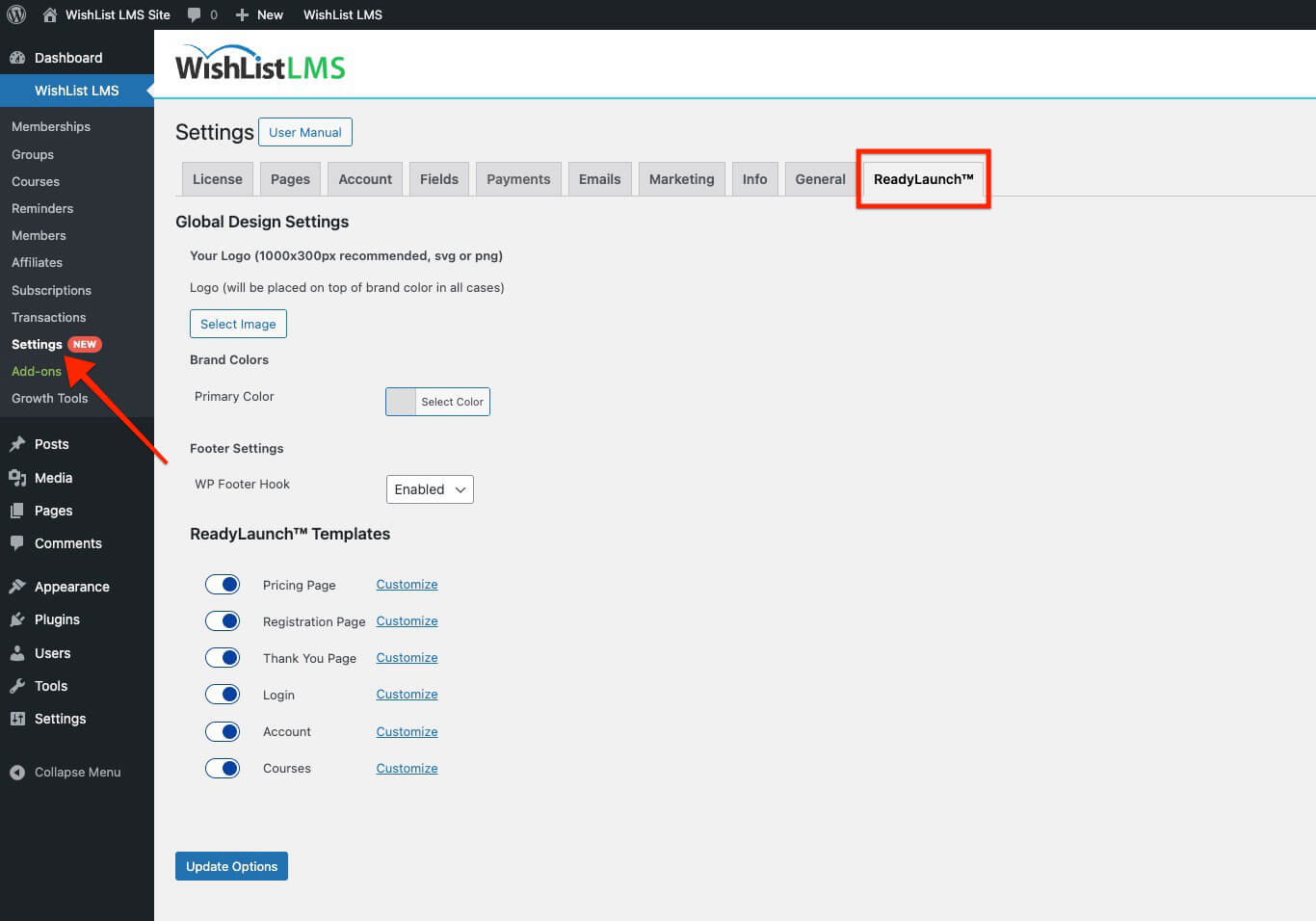
- Cliquez sur le bouton Customize link next to the Cours template name.
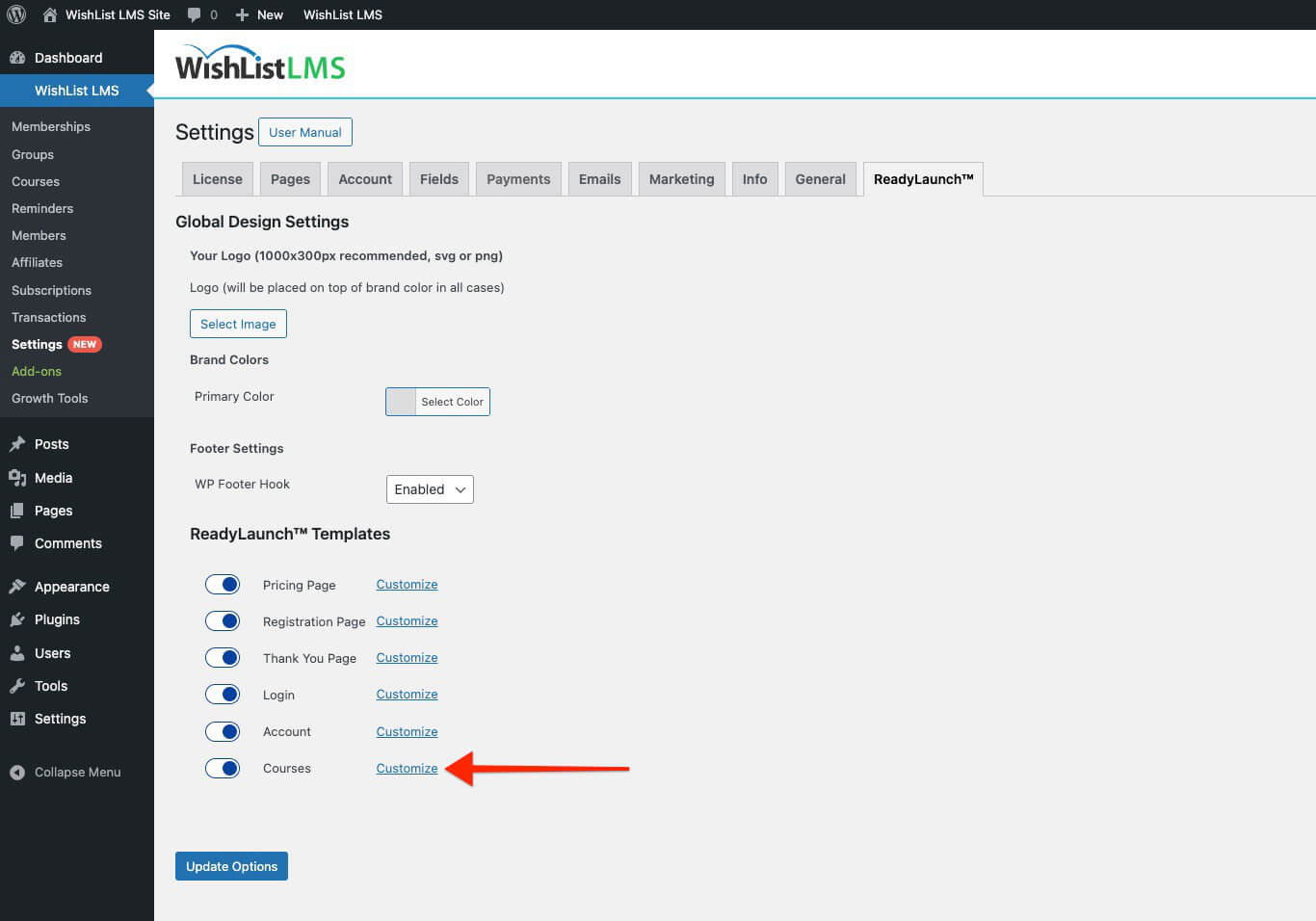
- A pop-up will open for the Courses Settings.
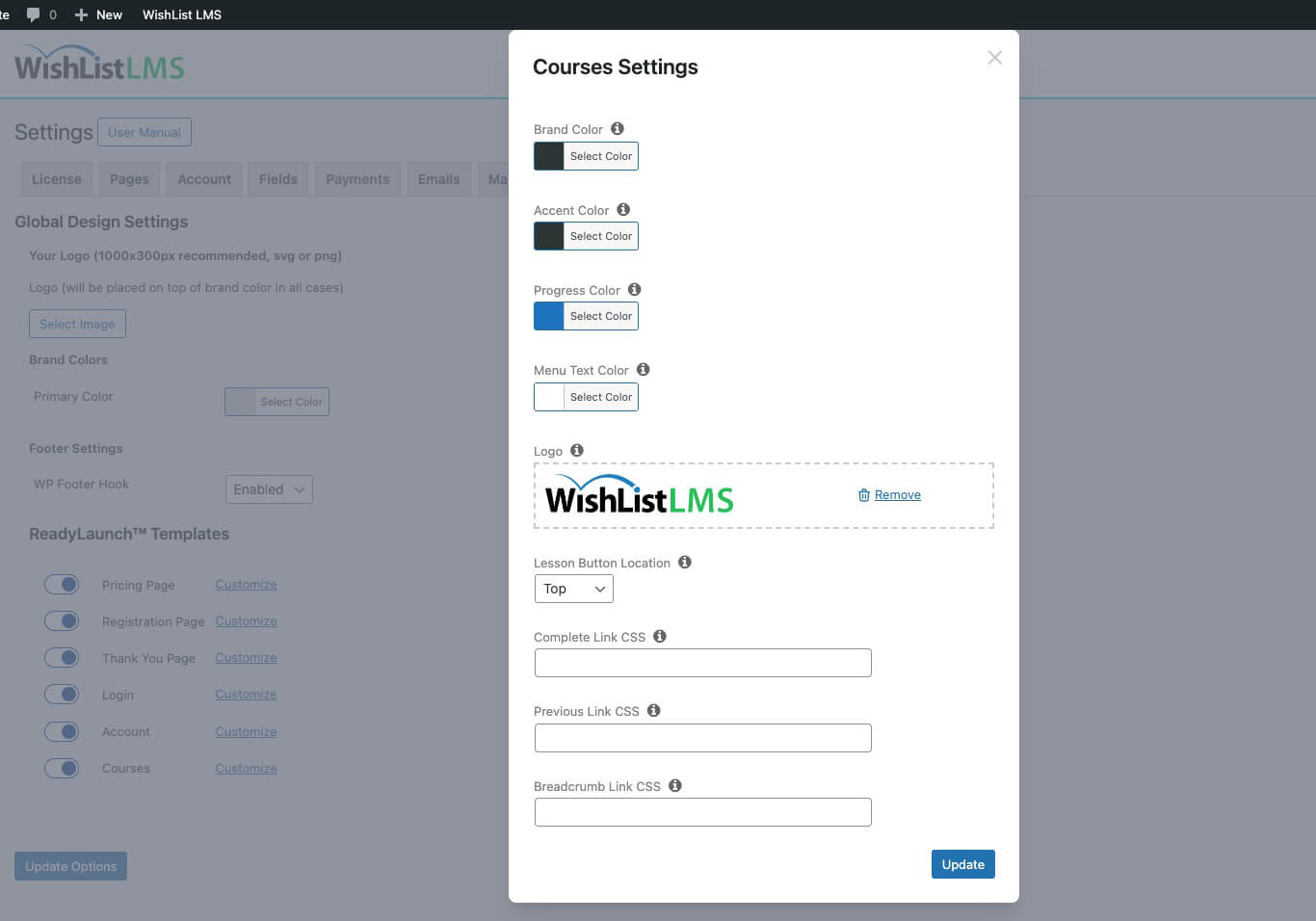
- Apply the required changes.
- Cliquez sur le bouton Update button to save changes.
Courses Template Customization Options
Here are the options for customizing the LaunchPad™ Courses Template.
- Brand Color: Changes the background color of your course navigation bar.
- Accent Color: Changes the color of template elements.
- Progress Bar: Changes the color of the progress bar, showing how much of the course you’ve completed. It also affects the course curriculum display.
- Menu Text Color: Changes the color of the menu labels.
- Logo: Adds a custom logo to the header of your cours. It’s best to use a wide, horizontal logo.
- Lesson Button Location: Sets where the continue/back buttons appear on lesson pages. You can choose Top, Bottom, or Both.
Advanced Styling Options for Courses
You can customize the appearance of certain parts of the template by adding your own CSS code to your website.
You can add custom classes to certain parts of the LaunchPad™ Courses and Lessons template.
- Complete Link CSS – assigns custom CSS classes to the Complete Lesson/Section/Course links on your lesson pages;
- Previous Link CSS – assigns custom CSS classes to the Previous Lesson/Section links on your lesson pages;
- Breadcrumb Link CSS – assigns custom CSS classes to the breadcrumb links on your lesson pages.
Custom classes let you style template elements. You can add your own CSS through the theme Customizer in the dashboard.
WishList LMS Courses Footer
You can turn on the WP Footer Hook in your course settings under Courses/Lessons template options.
By default, third-party scripts are turned off in the footer of WishList LMS Courses. Some plugins need these scripts to work properly. Without them, those plugins might not function correctly.
Enabling the WP Footer Hook option allows third-party scripts to load into your courses.