
Cash App Pay is a digital wallet in the U.S. that lets people save their card details and make payments.
WishList LMS works with Stripe to let you accept payments through Cash App Pay. This guide explains how to set it up and what you need to know about Cash App Pay.
Prerequisites
Make sure these things are ready before turning on Cash App Pay:
- Active Stripe connection: Cash App Pay only works through the WishList LMS integration system;
- USD currency: Both your Stripe account and WishList LMS should use US Dollars as the main currency;
- United States location: Set your Stripe and WishList LMS country settings to the United States.
Connecting Stripe to WishList LMS
Cash App Pay requires you to connect Stripe. If you have not linked Stripe to WishList LMS yet, follow the steps in the Connect Stripe with WishList LMS guide.
After connecting Stripe, test to make sure payments work before adding more payment options.
Enabling Cash App Pay in WishList LMS
First, enable Cash App Pay in your Stripe Dashboard before activating it in WishList LMS:
- Log in to your Stripe Dashboard.
- Ir para Settings > Payment Methods.
- Locate Cash App Pay and click Ligar.
- Complete any verification steps Stripe requires.
Next, activate the option in WishList LMS:
You can turn on Cash App Pay in WishList LMS by following the steps below:
- Navegue até Painel de controle > WishList LMS > Configurações > Pagamentos.
- Locate your Stripe payment gateway configuration.
- Clique no botão Customize Payment Methods botão.
- Find the Cash App Pay option and toggle it to enabled.
- Clique no botão Atualização button to apply the changes.
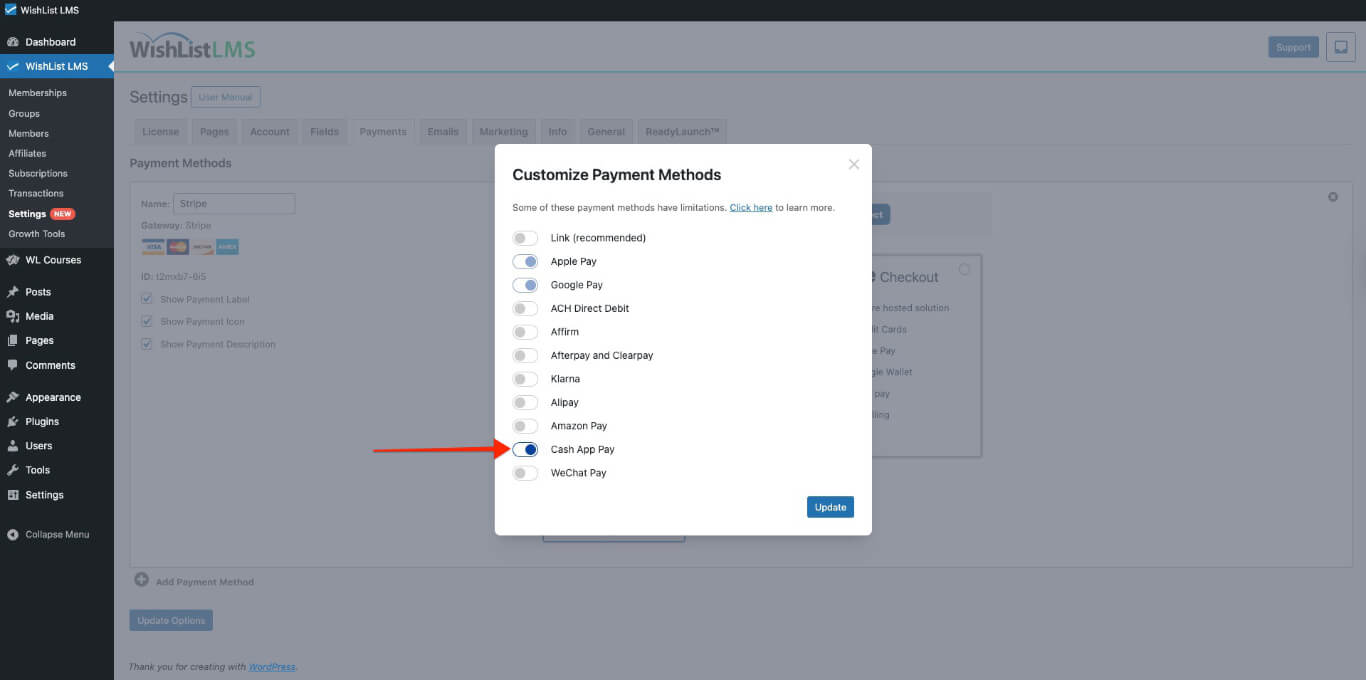
For detailed instructions on enabling payment methods in Stripe, refer to the “How To Enable Payment Methods With Stripe and WishList LMS” documentation.
How Cash App Pay Works
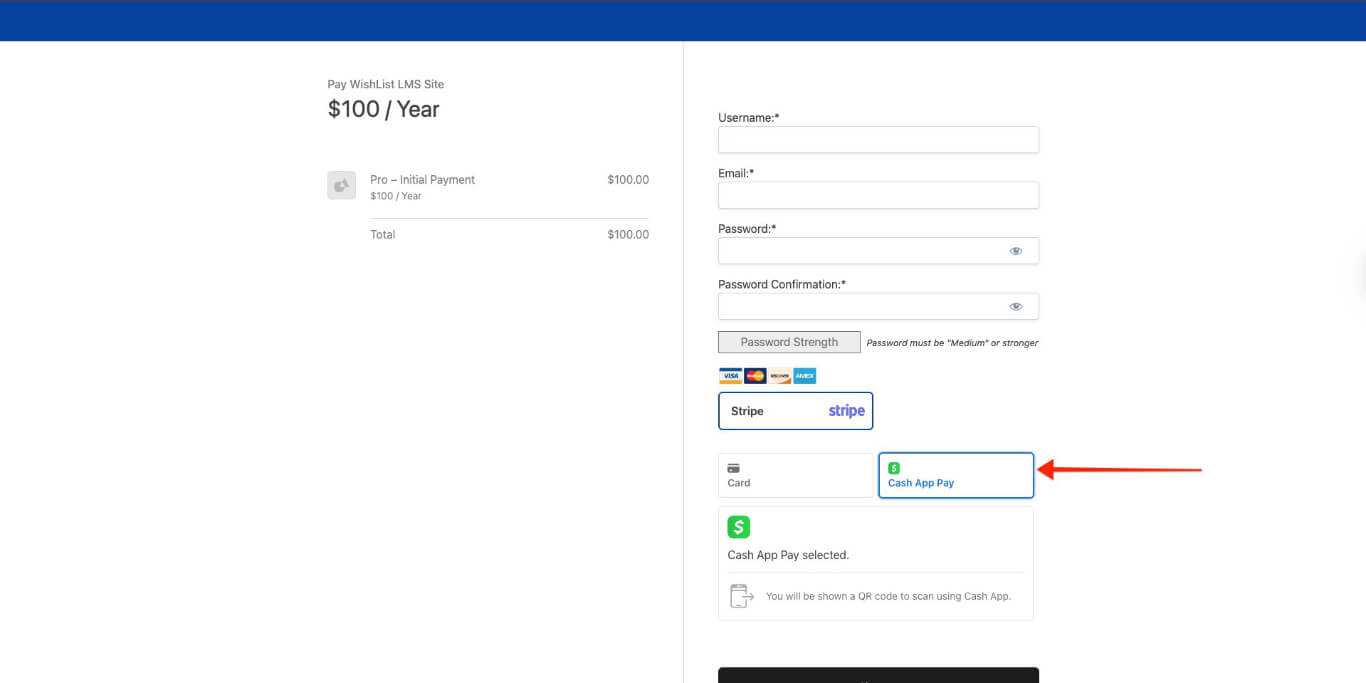
Once turned on, Cash App Pay shows up as a payment option on registration forms. It works with Stripe Checkout e Stripe Elementos.
When users choose Cash App Pay during sign-up:
- They fill out the registration form.
- After submitting the form, they pay using Cash App Pay.
- Once they confirm payment, they return to your website.
- They activate their membership access automatically.
Cash App Pay Limitations and Requirements
Supported Payment Types
Cash App Pay supports:
- One-time payments;
- Recurring subscription payments;
- Memberships with free trials;
- Memberships with paid trials.
Geographic and Currency Restrictions
Cash App Pay imposes specific limitations that you must meet:
- Currency: Only USD is accepted;
- Stripe account country: Set it to United States;
- WishList LMS country: Configure it for the United States;
- User location: If address fields are on the registration form, users must choose the United States to see Cash App Pay.
Availability Conditions
The Cash App Pay option will only show when all the conditions are met:
- Cash App Pay is available in Stripe and WishList LMS;
- Set the site currency to USD;
- User’s location is the United States;
- The user’s browser and location can use Cash App Pay.
Testing Cash App Pay
Test Cash App Pay carefully before going live:
- Ligar Test Mode in your Stripe settings in WishList LMS.
- Set your Stripe account to Test Mode.
- Register for the test using Cash App Pay.
- Check if test payments work and membership access is given.
- Try different situations, like payments that go through and ones that get canceled.
For testing, see the Connect Stripe with WishList LMS guide.
Troubleshooting
If Cash App Pay isn’t showing up as a payment option:
- Check that Cash App Pay is turned on in both Stripe and WishList LMS;
- Make sure your currency is set to USD;
- Make sure your location is set to the United States;
- Try clearing your browser cache and then test again.
For more details about Cash App Pay, see the official Stripe instructions.