
PayNow is a quick payment service by the Association of Banks in Singapore. It allows people in Singapore to pay using their bank’s app or apps from other financial companies that participate.
This document explains how to set up WishList LMS with Stripe to accept PayNow payments.
Voraussetzungen
To use PayNow with the WishList LMS, you’ll need to complete some setup steps.
- First, make sure your website has an SSL certificate for secure payments. Then, verify your Stripe account and connect your bank details. Finish the business verification in Stripe before launching your membership;
- Additionally, ensure that you set your Stripe account to Singapore. Also, set your WishList LMS currency to SGD in Dashboard > WishList LMS > Settings > General tab;
- Finally, connect Stripe to WishList LMS on your website before turning on PayNow. Test the connection to verify proper functionality.
Setting Up PayNow
PayNow works only with WishList LMS and Stripe. First, enable PayNow in your Stripe Dashboard:
- Log in to your Stripe Dashboard.
- Gehe zu Settings > Payment Methods.
- Suchen Sie PayNow and click Einschalten.
- Complete any verification steps Stripe requires.
Next, activate the option in WishList LMS by following these steps to turn on PayNow:
- Navigieren Sie zu Dashboard > WishList LMS > Einstellungen > Zahlungen tab.
- Locate your connected Stripe gateway.
- Klicken Sie auf die Customize Payment Methods Taste.
- Schalten Sie die PayNow Option.
- Klicken Sie auf die Update um die Änderungen zu speichern.
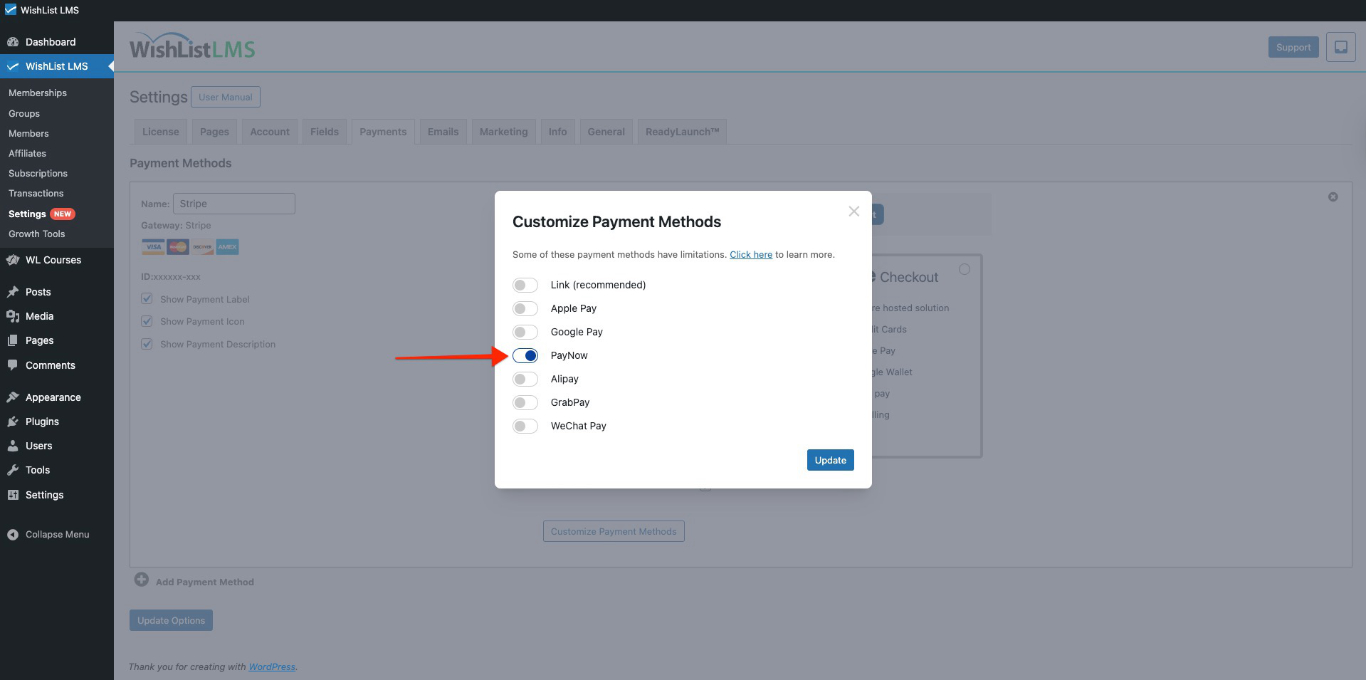
For additional details, consult the “How To Enable Payment Methods With Stripe and WishList LMS” document.
Customer Payment Process
Once you activate PayNow, your membership forms will show this payment option. Moreover, you can use PayNow on both Stripe Zur Kasse und Stripe Elemente forms.
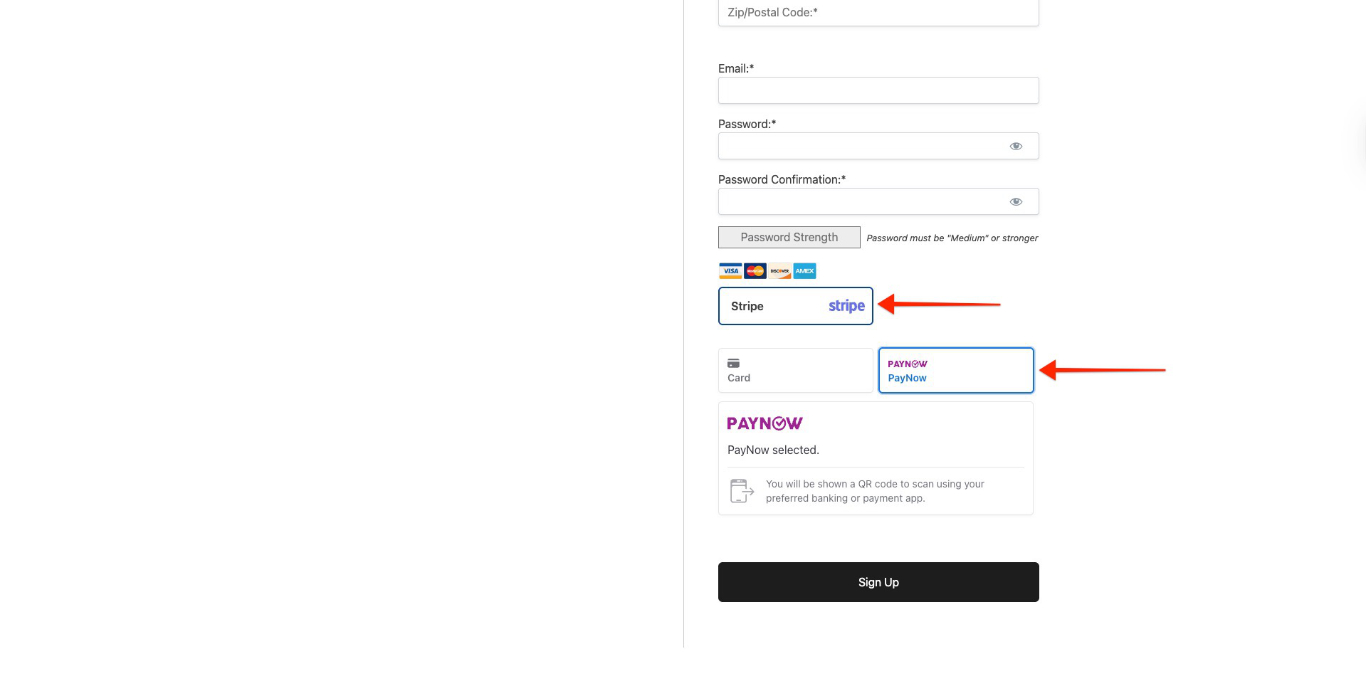
When customers fill out the form and choose PayNow, a QR code appears. Customers scan it with their banking app to complete the payment.
Important Limitations and Requirements
PayNow is available only when you meet certain conditions. You must follow the rules for both PayNow and Stripe.
PayNow is only for one-time payments; however, it doesn’t show up on pages for subscription memberships. Additionally, you can’t use it for payments that are delayed or for memberships with free or trial periods.
Furthermore, make sure your Stripe account country and WishList LMS currency are set correctly.
- Stripe account country: Singapore;
- WishList LMS currency: SGD (Singapore Dollar).
For additional information, consult the Stripe documentation.